Menu buttons (toolbar) and status bar are missing in SMPlayer (SOLVED)
February 10, 2024
SMPlayer is a popular cross-platform video player.
SMPlayer has many useful functions (crop video to fit the screen, fine-tune the appearance and location of subtitles, select the number of audio output channels) and many other settings, including those related to performance optimization and hardware acceleration of video decoding. Separately, I would like to note such a function as saving playback settings for each video file (resuming from the point to which you finished watching the file, video, audio and subtitle settings).
For details, see the note: How to install and configure best video player on Linux (SMPlayer)
The toolbar and status bar are missing in SMPlayer
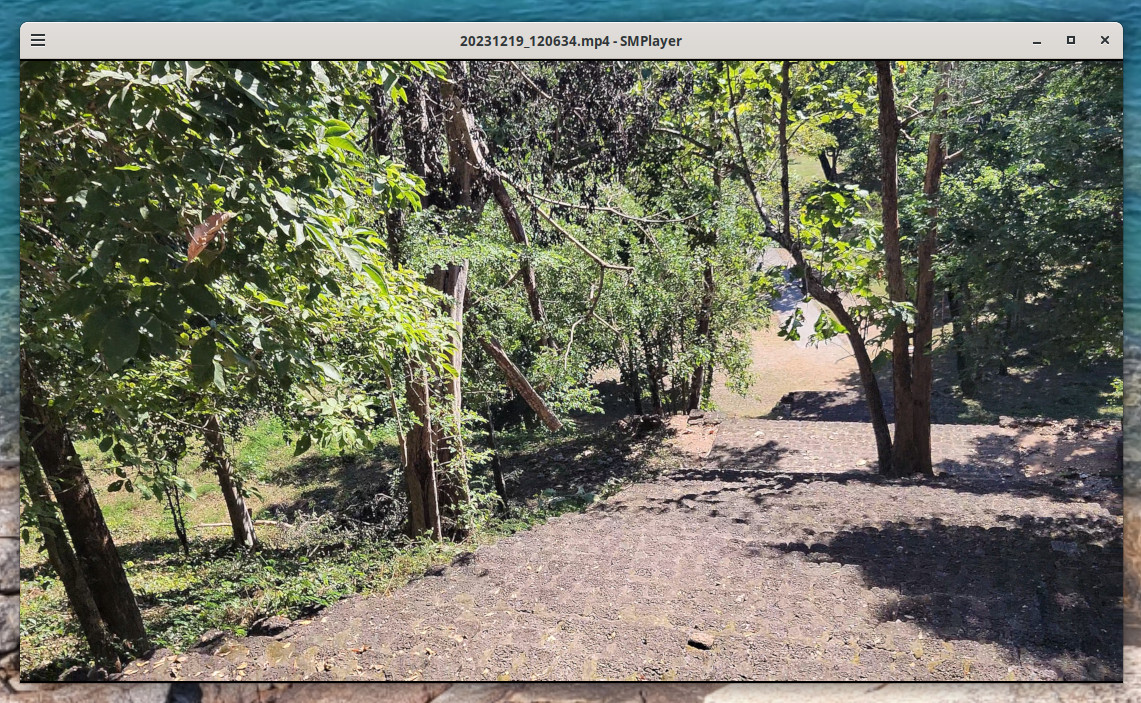
In general, using SMPlayer does not cause any problems, but one day the video player began to launch without a top panel (toolbar) and without a bottom panel (statusbar). That is, the player window began to look like this:
First, check if using the F5 hotkey will help you, which hides and shows the top toolbar of SMPlayer.
In my case, pressing the F5 button did not work at all.
I called up the context menu (to do this, right-click on the playing video), then went to Options → Toolbars → Main toolbar. This allowed the top menu to return, but the bar status did not appear. Moreover, when exiting SMPlayer and starting it again, the toolbar also disappeared.
Reinstalling SMPlayer didn't help. But during installation it showed a list of optional dependencies, including:
- smplayer-themes: collection of display theme icons
- smplayer-skins: collection of interface themes

The idea came up to install these packages, but it did not return the upper and lower control panels.
How to reset SMPlayer settings
Finally, I decided to try resetting SMPlayer settings – and this is what solved my problem.
SMPlayer settings are stored in the ~/.config/smplayer directory.
Note that:
- ~ - means your user's home directory
- .config, like all directories whose names begin with a dot, is “hidden” or “system”. So you may not see the “.config” folder in your home folder, but it is there and you can navigate to it.
To remove (reset) all SMPlayer settings, just close the video player and run the following command:
mv ~/.config/smplayer ~/.config/smplayer.bak
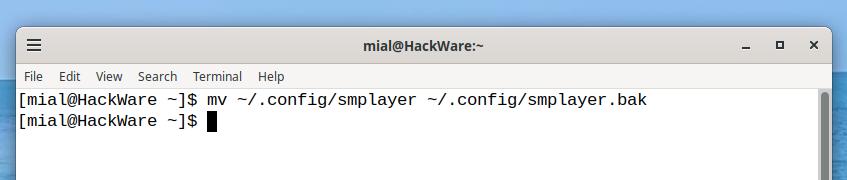
This command immediately solved my problem:
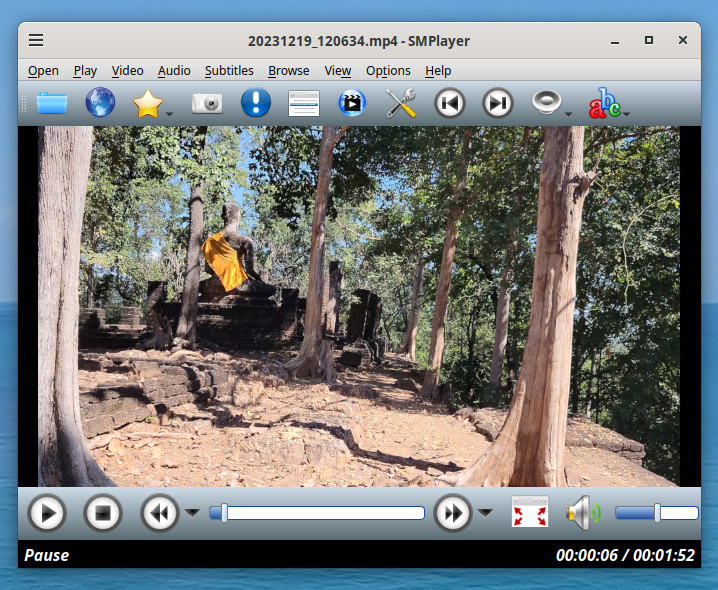
The next time you launch SMPlayer, the application will re-create this directory and all the necessary files.
You will need to re-configure SMPlayer (for example, enable hardware acceleration for video decoding).
Settings associated with individual video files will also be lost (for example, the point to which you finished watching the file). But this is actually a good thing, since most of these videos have been deleted a long time ago, and hundreds (or thousands) of settings files associated with them are still stored.
In fact, your settings are not permanently deleted, but moved to the ~/.config/smplayer.bak directory. Therefore, if you wish, you can (partially) restore files with old settings. For example, you can return all saved settings associated with video files.
Related articles:
- How to enable 10-bit color depth on Linux (and whether to enable 30-bit color) (97.6%)
- How to identify content with 10-bit color depth. How to check what color depth is used in a photo and video (97.6%)
- How to install and configure best video player on Linux (SMPlayer) (97.6%)
- How to determine the number of colors (bits per pixel) in X11 (88.9%)
- Batch image processing in GIMP (58.7%)
- How to fix Linux booting to black screen (SOLVED) (RANDOM - 52.5%)

It also helps a lot to do a file diff of the refreshed smplayer.ini vs the backup.
Knowing the cause, you can avoid ending up with the same condition.
In my case I was reminded that Ctrl+C enabled Compact Mode.
I recommend first checking that status which is easily done in the app itself.
Hello! Thank you for your addition.