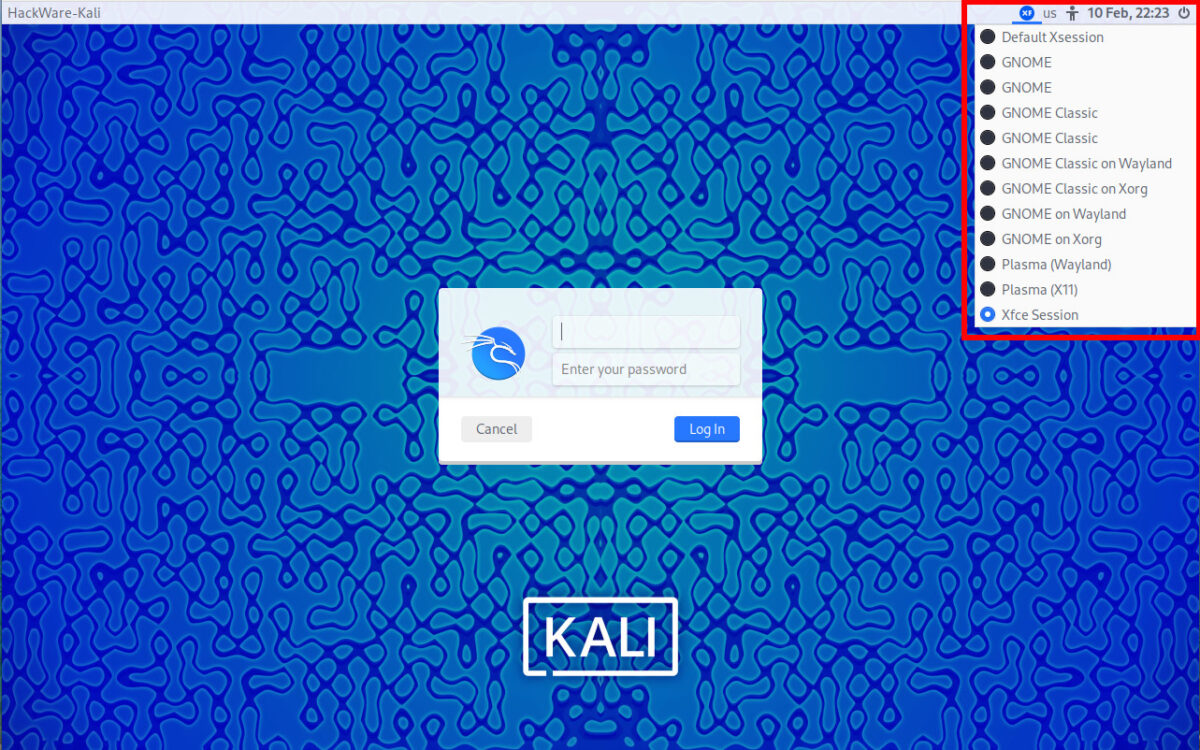
How to change Display manager and login screen in Linux
February 11, 2024
Table of contents
2. What is needed to change Display manager
3. What types of display managers are there?
4. How to Find Out Which Display Manager is Used on Linux
4.1 Display-manager.service status
4.2 Symbolic link /etc/systemd/system/display-manager.service
5. How to change Display Manager
7. How to install the new Display Manager on Arch Linux, Manjaro, BlackArch and their derivatives
8. How to switch between display managers
8.1 How to change Display Manager using Systemctl (Systemd)
8.2 How to change Display Manager using dpkg-reconfigure
9. How to roll back changes by Display Manager change
10.1 Interface and tips for using GDM
10.2 Interface and tips for using SDDM
10.3 Interface and tips for using LightDM
11. Errors and problem solving
11.1 Error “The unit files have no installation config” for GDM
11.2 GDM loads to a blank screen
11.3 LightDM service does not start. Error “Failed to start Light Display Manager”
What is Display manager
The Display manager, from a practical point of view for the end user, is the login window to the Linux OS.
In the display manager window, you can select a user (if there are several of them on a given computer), enter a password and select a graphical desktop environment (if there are several installed for a given Linux).
Under the hood, the display manager is responsible for how to set up automatic login on Linux, as well as which display server (X11 or Wayland) to choose (again, only if there are multiple display servers installed on a given Linux).
See also:
That is, from the point of view of a Linux computer user, the display manager usually does not need to be changed and, in fact, this program does not deserve special attention.
But if you're a Linux enthusiast who likes to try different desktop environments (Cinnamon, GNOME, Xfce, KDE Plasma and others) or different display servers (X11 or Wayland), then you may find that different display managers work better or worse in conjunction with other components responsible for image output and graphical user interface.
Either you are not satisfied with the functionality (for example, the ability to customize the appearance) or the appearance of the display manager as a whole, then you can change the Display manager.
What is needed to change Display manager
Display manager is a regular Linux OS package that can be installed in literally one command. And then use systemctl to activate it.
But you need to be prepared for an unexpected situation where the system cannot complete booting into the GUI. Therefore, you should know about the keyboard shortcuts Ctrl+Alt+F1, Ctrl+Alt+F2, Ctrl+Alt+F3 and so on, which will allow you to go to the console and log into the Linux OS with a command line interface. You must also be able to roll back changes that led to the inability to load the graphical interface – that is, you are required to be aware of the actions you perform.
See also: How to fix Linux booting to black screen (SOLVED)
In general, I warned you: the system may not boot into the graphical desktop environment and get stuck loading the Display manager – this sometimes happens to me, I even put together a small problem solving section.
What types of display managers are there?
Popular Display managers are:
- GDM – typically associated with GNOME, but can work with other desktop environments. In my case, GDM sometimes caused problems (on some OSes, loading ended with blank screens until Wayland was disabled for the login screen). Can work with Wayland
- LightDM – usually associated with Xfce, but works with other desktop environments as well
- SDDM – usually associated with KDE Plasma, but works with other desktop environments as well. In my experiments with Linux OS, this is the least problematic display manager in conjunction with various graphical desktop environments, including when working with the Wayland display server
Besides these three, there are others:
- LXDM – usually associated with LXDE. Lightweight X11 Display Manager
- XDM (xorg-xdm) – X Display Manager
- entrance – Enlightenment Display Manager
- cdm - console display manager
- lemurs – TUI Display/Login Manager
- emptty is an extremely simple display manager with a command line interface on TTY
- And apparently some others
How to Find Out Which Display Manager is Used on Linux
1. Display-manager.service status
To determine which display manager was used to boot Linux, you need to look at the status of display-manager.service. To do this, run the command:
systemctl status display-manager.service
Information about the display manager is contained in several places in the output.
Example output for GDM:
● gdm.service - GNOME Display Manager
     Loaded: loaded (/usr/lib/systemd/system/gdm.service; enabled; preset: enabled)
    Drop-In: /usr/lib/systemd/system/gdm.service.d
             └─disable-wayland.conf
     Active: active (running) since Sat 2024-02-10 20:59:10 EST; 4min 45s ago
    Process: 678 ExecStartPre=/usr/share/gdm/generate-config (code=exited, status=0/SUCCESS)
    Process: 687 ExecStartPre=/usr/libexec/gdm-runtime-config set daemon WaylandEnable false (code=exited, status=0/SUCCESS)
   Main PID: 690 (gdm3)
      Tasks: 4 (limit: 5651)
     Memory: 10.1M (peak: 29.5M)
        CPU: 207ms
     CGroup: /system.slice/gdm.service
             └─690 /usr/sbin/gdm3

Feb 10 20:59:09 HackWare-Kali systemd[1]: Starting gdm.service - GNOME Display Manager...
Feb 10 20:59:10 HackWare-Kali systemd[1]: Started gdm.service - GNOME Display Manager.
Feb 10 20:59:10 HackWare-Kali gdm-launch-environment][697]: pam_unix(gdm-launch-environment:session): session opened for user Debian-gdm(uid=132) by (uid=>
Feb 10 21:00:38 HackWare-Kali gdm-password][1189]: gkr-pam: unable to locate daemon control file
Feb 10 21:00:38 HackWare-Kali gdm-password][1189]: gkr-pam: stashed password to try later in open session
Feb 10 21:00:38 HackWare-Kali gdm-password][1189]: pam_unix(gdm-password:session): session opened for user mial(uid=1000) by (uid=0)
Feb 10 21:00:39 HackWare-Kali gdm-password][1189]: gkr-pam: unlocked login keyring
Feb 10 21:00:49 HackWare-Kali gdm3[690]: Gdm: Child process -726 was already dead.

Sample output for SDDM:
● sddm.service - Simple Desktop Display Manager
     Loaded: loaded (/usr/lib/systemd/system/sddm.service; enabled; preset: disabled)
     Active: active (running) since Sat 2024-02-10 21:08:57 EST; 1min 16s ago
       Docs: man:sddm(1)
             man:sddm.conf(5)
   Main PID: 678 (sddm)
      Tasks: 4 (limit: 5651)
     Memory: 147.8M (peak: 148.1M)
        CPU: 3.685s
     CGroup: /system.slice/sddm.service
             ├─678 /usr/bin/sddm
             └─687 /usr/lib/xorg/Xorg -nolisten tcp -background none -seat seat0 vt2 -auth /run/sddm/xauth_iwkqPJ -noreset -displayfd 16

Feb 10 21:09:21 HackWare-Kali sddm-helper[826]: pam_kwallet5(sddm:setcred): pam_kwallet5: pam_sm_setcred
Feb 10 21:09:21 HackWare-Kali sddm-helper[826]: pam_unix(sddm:session): session opened for user mial(uid=1000) by (uid=0)
Feb 10 21:09:21 HackWare-Kali sddm[678]: Auth: sddm-helper exited successfully
Feb 10 21:09:21 HackWare-Kali sddm[678]: Greeter stopped. SDDM::Auth::HELPER_SUCCESS
Feb 10 21:09:21 HackWare-Kali sddm-helper[826]: gkr-pam: unlocked login keyring
Feb 10 21:09:21 HackWare-Kali sddm-helper[826]: pam_kwallet5(sddm:session): pam_kwallet5: pam_sm_open_session
Feb 10 21:09:21 HackWare-Kali sddm-helper[826]: pam_env(sddm:session): deprecated reading of user environment enabled
Feb 10 21:09:21 HackWare-Kali sddm-helper[826]: Writing cookie to "/tmp/xauth_hPqZFm"
Feb 10 21:09:21 HackWare-Kali sddm-helper[826]: Starting X11 session: "" "/etc/sddm/Xsession \"startxfce4\""
Feb 10 21:09:21 HackWare-Kali sddm[678]: Session started true

Example output for LightDM:
● lightdm.service - Light Display Manager
     Loaded: loaded (/usr/lib/systemd/system/lightdm.service; enabled; preset: disabled)
     Active: active (running) since Sat 2024-02-10 21:14:12 EST; 1min 12s ago
       Docs: man:lightdm(1)
   Main PID: 677 (lightdm)
      Tasks: 6 (limit: 5651)
     Memory: 117.9M (peak: 118.4M)
        CPU: 2.000s
     CGroup: /system.slice/lightdm.service
             ├─677 /usr/sbin/lightdm
             └─693 /usr/lib/xorg/Xorg :0 -seat seat0 -auth /var/run/lightdm/root/:0 -nolisten tcp vt7 -novtswitch

Feb 10 21:14:12 HackWare-Kali systemd[1]: Starting lightdm.service - Light Display Manager...
Feb 10 21:14:12 HackWare-Kali systemd[1]: Started lightdm.service - Light Display Manager.
Feb 10 21:14:12 HackWare-Kali lightdm[704]: pam_unix(lightdm-greeter:session): session opened for user lightdm(uid=126) by (uid=0
Feb 10 21:14:13 HackWare-Kali lightdm[704]: pam_unix(lightdm-greeter:session): session opened for user lightdm(uid=126) by (uid=0
Feb 10 21:15:09 HackWare-Kali lightdm[817]: gkr-pam: unable to locate daemon control file
Feb 10 21:15:09 HackWare-Kali lightdm[817]: gkr-pam: stashed password to try later in open session
Feb 10 21:15:09 HackWare-Kali lightdm[817]: pam_unix(lightdm:session): session opened for user mial(uid=1000) by (uid=0)
Feb 10 21:15:10 HackWare-Kali lightdm[817]: gkr-pam: unlocked login keyring

2. Symbolic link /etc/systemd/system/display-manager.service
On most Linux operating systems, the display manager selected for loading is pointed to by the symbolic link /etc/systemd/system/display-manager.service.
To see its destination, run the command:
file /etc/systemd/system/display-manager.service
Example output:
/etc/systemd/system/display-manager.service: symbolic link to /usr/lib/systemd/system/sddm.service

That is, the SDDM (sddm.service) display manager is used.
The following command will shorten the output:
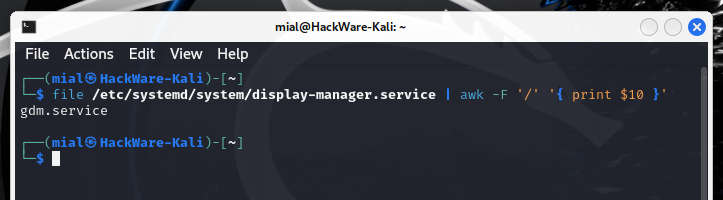
file /etc/systemd/system/display-manager.service | awk -F '/' '{ print $10 }'
Example output:
gdm.service
How to change Display Manager
The algorithm of actions is very simple:
- Install package with new Display Manager
- Execute the command to switch to the new Display Manager
If your OS already has several display managers installed, then you can go straight to the second point – switching between Display Managers.
There are several ways to switch between display managers. Any Linux OS that uses Systemd (the vast majority of distributions these days) can add and remove display managers from startup using the systemctl utility.
Including, you can use systemctl on distributions such as Debian, Ubuntu, Linux Mint and Kali Linux. But these same distributions (all of them based on Debian) have their own dpkg-reconfigure script, which, in fact, does exactly the same thing as systemctl.
I'll show you both ways, but I recommend using the more versatile option with systemctl simply because it's more versatile. The result will be identical in any case.
You need to start by installing the display manager package.
How to install the new Display Manager on Debian, Ubuntu, Linux Mint, Kali Linux and their derivatives
How to install GDM
To switch to GDM, install the gdm package by running the commands:
sudo apt update
sudo apt install gdm
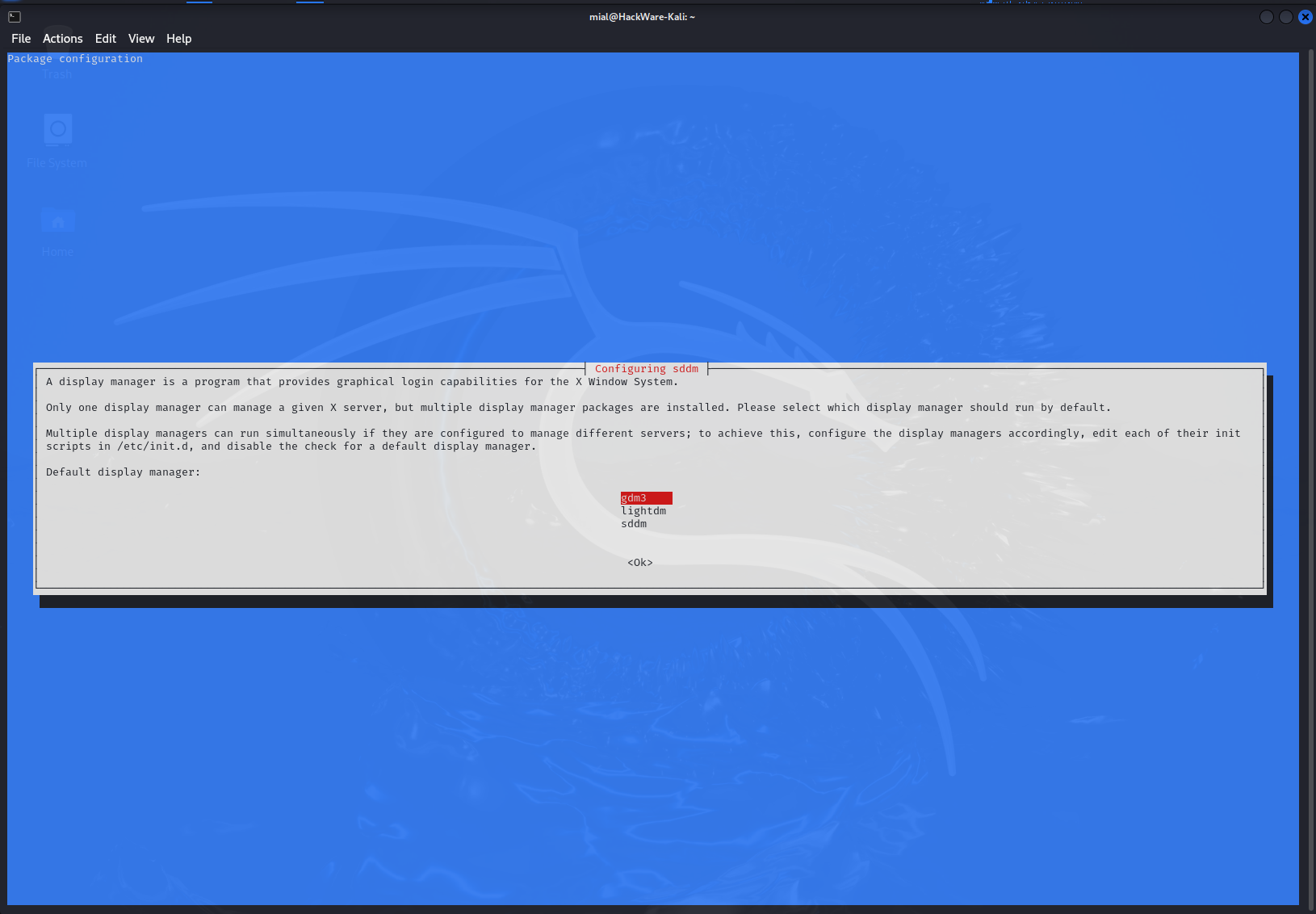
During the display manager installation, the package manager will ask if you want to use the new Display Manager. You can make your choice at this point and then you won't have to switch to the new Display Manager. To switch between items, use the up and down arrow keys. After selecting the display manager you want, press the Tab key (to move to the “<OK>” button and then press the Enter key.
How to install SDDM
To switch to SDDM, install the sddm package by running the commands:
sudo apt update
sudo apt install sddm
During the display manager installation, the package manager will ask if you want to use the new Display Manager. You can make your choice at this point and then you won't have to switch to the new Display Manager. To switch between items, use the up and down arrow keys. After selecting the display manager you want, press the Tab key (to move to the “<OK>” button and then press the Enter key.
How to install LightDM
To switch to LightDM, install the lightdm package by running the commands:
sudo apt update
sudo apt install lightdm
During the display manager installation, the package manager will ask if you want to use the new Display Manager. You can make your choice at this point and then you won't have to switch to the new Display Manager. To switch between items, use the up and down arrow keys. After selecting the display manager you want, press the Tab key (to move to the “<OK>” button and then press the Enter key.
How to install the new Display Manager on Arch Linux, Manjaro, BlackArch and their derivatives
How to install GDM
To switch to GDM, install the gdm package by running the command:
sudo pacman -S gdm
How to install SDDM
To switch to SDDM, install the sddm package by running the command:
sudo pacman -S sddm
How to install LightDM
To switch to LightDM, install the lightdm and lightdm-gtk-greeter packages by running the command:
sudo pacman -S lightdm lightdm-gtk-greeter
How to switch between display managers
1. How to change Display Manager using Systemctl (Systemd)
This method of changing the display manager works for a wide range of distributions, including Debian, Ubuntu, Linux Mint, Kali Linux and their derivatives, as well as Arch Linux, Manjaro, BlackArch and their derivatives.
Note: If you are using Debian, Ubuntu, Linux Mint, Kali Linux or a derivative of them, and if you selected a new display manager during the package installation step, then you DO NOT need to take any further steps and can skip this and the next section. You can proceed to reboot the OS for the changes made to take effect.
You need to run two commands sequentially, the first one disables the current display manager from startup, the second one adds a new display manager to startup:
sudo systemctl disable DISPLAY_MANAGER
sudo systemctl enable DISPLAY_MANAGER
Instead of DISPLAY_MANAGER you need to add one of the following values:
- gdm.service
- sddm.service
- lightdm.service
For example, Linux currently uses GDM and I want to replace it with SDDM, then I need to run the following commands:
sudo systemctl disable gdm.service
sudo systemctl enable sddm.service
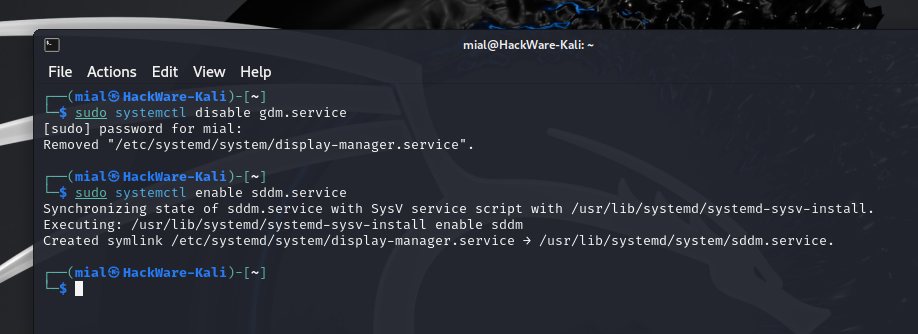
Or I'm using SDDM and I want to replace it with LightDM, then I need to run the following commands:
sudo systemctl disable sddm.service
sudo systemctl enable lightdm.service

I think you get the idea.
2. How to change Display Manager using dpkg-reconfigure
This method only works on Debian and its derivative distributions, including Ubuntu, Linux Mint, Kali Linux.
You need to run a command like:
sudo dpkg-reconfigure DISPLAY_MANAGER
As DISPLAY_MANAGER you need to specify any of the already installed display managers, for example:
sudo dpkg-reconfigure gdm3
This window contains information for advanced users, just click “<OK>” (using the Tab and Enter keys).

In the next window, select the desired display manager:

To switch between items, use the up and down arrow keys. After selecting the display manager you want, press the Tab key (to move to the “<OK>” button and then press the Enter key.

How to roll back changes by Display Manager change
If you have already removed the package, then you need to install the display manager you want to revert to.
Then remove the current display manager from startup and add the one you want to startup – exactly as shown above.
Display Manager functions
Login screen, even for the same display manager, may differ in appearance on different Linux distributions, since many display managers support different skins and/or appearance customization.
The usual set of functions of each display manager:
- selecting a user from the list provided or entering the username manually
- entering user password
- selecting desktop environment
- computer shutdown and restart buttons
There are also additional functions:
- accessibility (increase contrast, increase font size, zoom, screen reading, on-screen keyboard, etc.)
- changing the password input language and/or Linux language
- network configuration
- choosing a dark theme
- battery mode selection (energy saving and balanced)
- volume settings, battery information, etc.
Interface and tips for using GDM
A list of users is presented in the center of the screen. If you do not see the user you need, then click “Not listed?”.

In the upper right corner you will see an accessibility button in the form of a man; here you can enable functions such as: increasing contrast, increasing font size, zooming, screen reading, on-screen keyboard and others.
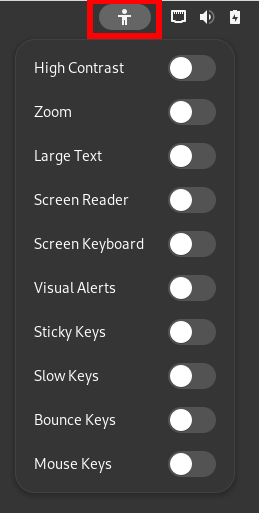
There, in the upper right corner, you will see icons that open network, sound, battery mode and appearance settings.

After selecting a user, two additional elements will appear:
- User password prompt
- A gear that, when clicked, allows you to select your desktop environment. After a reboot, GDM remembers the selected desktop environment, but you can again change it simply by clicking on the gear icon.

To continue booting, after entering the password, press the Enter key.
If you make a mistake with your user selection, you will see a “Back” arrow to the left of the password prompt. Click it to return to the user list.
Interface and tips for using SDDM
The SDDM's appearance is very different on the two systems I tested on.
In the first example, in the upper left corner there is a drop-down list of desktop environments. Next to this list you can change the keyboard layout.

In the center of the screen you can select a user and enter a password. You can switch between users (if there are several of them on a given OS) using the arrows.
There is a power off button in the top right corner.
On another OS, a more customized SDDM looks like this:

In the center of the screen you can enter the user password.
In the lower left corner you can select graphical desktop environment:
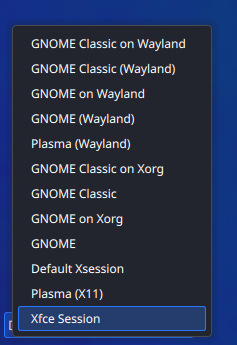
If you want to select another user, then click the “Other...” button.
You will be prompted to enter your username and password. If you want to return to the previous view, click the “List Users” button.

Interface and tips for using LightDM
In the standard Linux repositories you will find different LightDM welcome screens (greeter), in addition, LightDM supports customizing the appearance of the login window (as, indeed, do the other display managers discussed).
On one of the tested systems, LightDM looks like this:
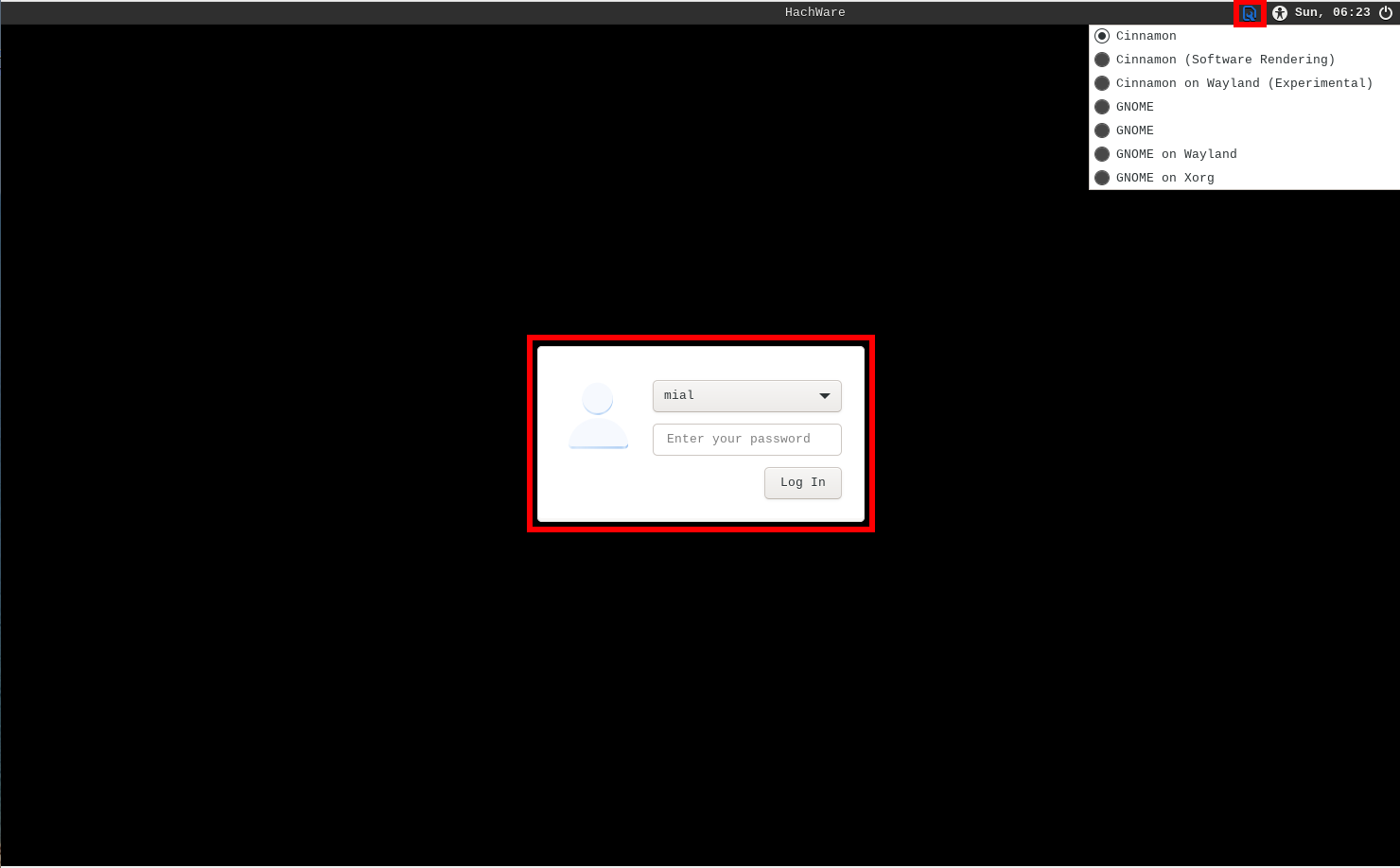
In the center of the screen you can select a user and enter a password.
In the upper right corner you will find several icons, one of which allows you to select your desktop environment. Please note that the desktop environment selection icon looks different depending on the selection you make.
On the second system, LightDM looks generally similar. Please note that the desktop environment selection icon is now different (since a different session is selected).

There are also buttons for changing the keyboard layout, accessibility and turning off the computer.
Errors and problem solving
1. Error “The unit files have no installation config” for GDM
When you try to add the GDM display manager to startup, for example, with the following command:
sudo systemctl enable gdm.service
On some distributions an error occurs:
The unit files have no installation config (WantedBy=, RequiredBy=, UpheldBy=,
Also=, or Alias= settings in the [Install] section, and DefaultInstance= for
template units). This means they are not meant to be enabled or disabled using systemctl.

Possible reasons for having these kinds of units are:
• A unit may be statically enabled by being symlinked from another unit's
  .wants/, .requires/, or .upholds/ directory.
• A unit's purpose may be to act as a helper for some other unit which has
  a requirement dependency on it.
• A unit may be started when needed via activation (socket, path, timer,
  D-Bus, udev, scripted systemctl call, ...).
• In case of template units, the unit is meant to be enabled with some
  instance name specified.

To fix it, open the file /lib/systemd/system/gdm.service as an administrator, for example:
sudo gedit /lib/systemd/system/gdm.service
And add the following lines at the very end:
[Install]
Alias=display-manager.service

Save and close the file.
Immediately after this the error will disappear:

2. GDM loads to a blank screen
On some systems after installation or after a system update, GDM boots, but the entire screen is filled with one color. That is, the system boots into the screen without the ability to select a user and enter a password
Sometimes you can even log in by entering your password and pressing Enter.
To fix the situation, you need to disable the use of Wayland and force the use of Xorg for the login screen.
Please note that you will still be able to boot into a desktop environment with Wayland. This means disabling Wayland specifically for the login screen.
To do this, open the GDM configuration file; it has a *.conf extension and can be located in one of the following directories (depending on the Linux distribution):
- /etc/gdm/
- /etc/gdm3/
Examples of the location and name of the GDM configuration file:
- /etc/gdm/custom.conf (on Arch Linux and derivative distributions);
- /etc/gdm3/daemon.conf (on Debian and derivative distributions);
Open the GDM configuration file:
sudo gedit /etc/gdm/custom.conf
Find the line
#WaylandEnable=false
And uncomment it, that is, remove the hash symbol from the beginning of the line so that it turns out:
WaylandEnable=false
Save and close the file. Then reboot – GDM should now show the login page correctly.
3. LightDM service does not start. Error “Failed to start Light Display Manager”
When starting the OS with LightDM selected as the display manager, an error occurs:
Failed to start Light Display Manager

If you check the status of the lightdm.service service, you will see the following:
× lightdm.service - Light Display Manager
     Loaded: loaded (/usr/lib/systemd/system/lightdm.service; enabled; preset: disabled)
     Active: failed (Result: exit-code) since Sun 2024-02-11 09:26:08 MSK; 1min 49s ago
       Docs: man:lightdm(1)
    Process: 406 ExecStart=/usr/bin/lightdm (code=exited, status=1/FAILURE)
   Main PID: 406 (code=exited, status=1/FAILURE)
        CPU: 10ms

Feb 11 09:26:08 HachWare systemd[1]: lightdm.service: Scheduled restart job, restart counter is at 5.
Feb 11 09:26:08 HachWare systemd[1]: lightdm.service: Start request repeated too quickly.
Feb 11 09:26:08 HachWare systemd[1]: lightdm.service: Failed with result 'exit-code'.
Feb 11 09:26:09 HachWare systemd[1]: Failed to start Light Display Manager.

There may be several reasons for this problem. One of them is the absence of the lightdm-gtk-greeter package, which on some Linux distributions (for example, Arch Linux) is not a required dependency for lightdm. But in practice, lightdm does not work without the lightdm-gtk-greeter package. Installing this package may solve the problem:
sudo pacman -S lightdm-gtk-greeter
4. Error “Failed to enable unit: File /etc/systemd/system/display-manager.service already exists and is a symlink to /usr/lib/systemd/system/gdm.service.”
When you try to add a display manager to startup, for example, with the following command:
sudo systemctl enable lightdm.service
You may encounter an error, the essence of which is that the file /etc/systemd/system/display-manager.service already exists:
Failed to enable unit: File /etc/systemd/system/display-manager.service already exists and is a symlink to /usr/lib/systemd/system/gdm.service.

The problem occurs because you are trying to add a display manager to startup without first disabling the previous one.
To fix this error, you must first remove the old display manager from startup. After this, the error will disappear and you can add the new Display manager to startup without any problems.
Automatic login in Linux
For instructions on how to set up logging into Linux without entering a password, see the following articles:
- How to set up automatic login in Linux with GDM
- How to set up automatic login in Linux with SDDM
- How to set up automatic login in Linux with LightDM
Related articles:
- How to migrate from X11 to Wayland? (95.2%)
- How to enable automatic login in Linux (GDM, LightDM, SDDM) (76.5%)
- How to set up automatic login in Linux with SDDM (62%)
- How to set up automatic login in Linux with LightDM (62%)
- How to set up automatic login in Linux with GDM (62%)
- Error “net::ERR_CERT_COMMON_NAME_INVALID” for self-signed certificate (SOLVED) (RANDOM - 50%)
