How to create virtual environments with any Python version (Micromamba user guide)
June 23, 2026
Contents
1. How to use a specific Python version in Linux
2. What are Miniconda and Micromamba?
4. How to install Micromamba on Linux
4.1 Installing Micromamba on Debian (Kali Linux, Linux Mint, Ubuntu)
4.2 Installing Micromamba on Arch Linux (Manjaro, BlackArch)
5. Getting started with Micromamba: creating and using an environment with a specific Python version
6. Managing packages in a Micromamba environment
7. Using pip inside Micromamba
8. Exporting and recreating environments
9. Conda channels (Miniconda / Micromamba)
10. Running commands without activating an environment
13. Micromamba errors and troubleshooting
13.1 OSError: [Errno 28] No space left on device
13.2 error: [Errno 18] Invalid cross-device link
14. How to uninstall Micromamba on Linux
14.1 Uninstalling Micromamba on Debian (Kali Linux, Linux Mint, Ubuntu)
14.2 Uninstalling Micromamba on Arch Linux (Manjaro, BlackArch)
1. How to use a specific Python version in Linux
If you need a quick and reliable way to create a virtual environment with a specific Python version, this guide will show you how.
A specific Python version is often required by software dependencies. For example, AI and neural network models sometimes require a particular Python version. More precisely, the libraries needed to run the model depend on that Python version, but the practical result is the same: you need Python executables of a specific version.
We will not cover the more complex approach of compiling Python from source. Instead, this guide shows how to create environments with virtually any Python version using just a few commands.
Two excellent tools for this purpose are Miniconda and Micromamba. In this guide, we will use Micromamba.
See also:
- How to create virtual environments with any Python version (Miniconda user guide)
- How to run AI models on Windows with any Python version (a simple method)
2. What are Miniconda and Micromamba?
Miniconda and Micromamba are tools for managing environments and packages within the Conda ecosystem.
Despite the similarity in their names, Miniconda and Micromamba are different programs developed by different organizations. At more advanced usage levels, they have some differences, but for the functionality we need – creating a Python virtual environment with a chosen Python version – they are effectively equivalent.
You can choose either one:
- Miniconda – older and written in Python, which can make dependency resolution slower in some cases, although this is unlikely to be noticeable in the examples shown here.
- Micromamba – a newer alternative written in C++, which can be faster when resolving dependencies in certain scenarios. However, for the basic usage demonstrated in this guide, the difference is unlikely to be noticeable.
Neither package is available in standard Linux repositories.
In practice, you can choose whichever you prefer. For basic use cases, the main difference is the commands used to create and activate Python environments.
This article focuses on Micromamba.
You do not need both Miniconda and Micromamba installed. Choosing one is sufficient. However, if you wish, you can install both – they do not conflict with each other. In fact, an environment created with one can generally be used (for example, activated) from the other.
3. What is the difference between Python virtual environments (venv, virtualenv) and Conda environments (Miniconda / Micromamba)?
Before continuing, it is worth explaining why tools such as Miniconda and Micromamba exist and why standard Python virtual environments are not always sufficient.
With standard Python tools, you can create isolated virtual environments:
python -m venv venv
source venv/bin/activate
Inside these environments, you can use pip to install packages that are visible only within that environment.
The limitation is that everything operates within a single Python version – the current system version. You cannot arbitrarily choose a different Python version when creating the environment. While you could compile another Python version from source, this guide focuses on simpler approaches.
Package management is handled through pip, meaning dependencies are limited to Python packages. By default, the environment files are stored in the directory where the environment is created (for example, ./venv).
Conda environments are different. When creating a Conda environment, you can choose any Python version. This is one of their most important features and makes them especially useful for applications that depend on a specific Python release.
Inside a Conda environment, packages can be installed using either pip or the conda/mamba package managers.
Conda/Mamba packages are not limited to Python libraries. They can include virtually any dependency, including C/C++ libraries and executables. For example, you can install specific versions of CUDA, PyTorch, and other runtime components directly into the environment.
In general, Conda environments provide stronger isolation and are heavier than standard Python virtual environments. Their files are typically stored in centralized locations by default, although they can also be created within a project directory.
4. How to install Micromamba on Linux
4.1 Installing Micromamba on Debian (Kali Linux, Linux Mint, Ubuntu)
Run the following command:
"${SHELL}" <(curl -L micro.mamba.pm/install.sh)
You will be asked several questions. You can safely accept all default values by pressing Enter:
Micromamba binary folder? [~/.local/bin]
Init shell (zsh)? [Y/n]
Configure conda-forge? [Y/n]
Prefix location? [~/micromamba]
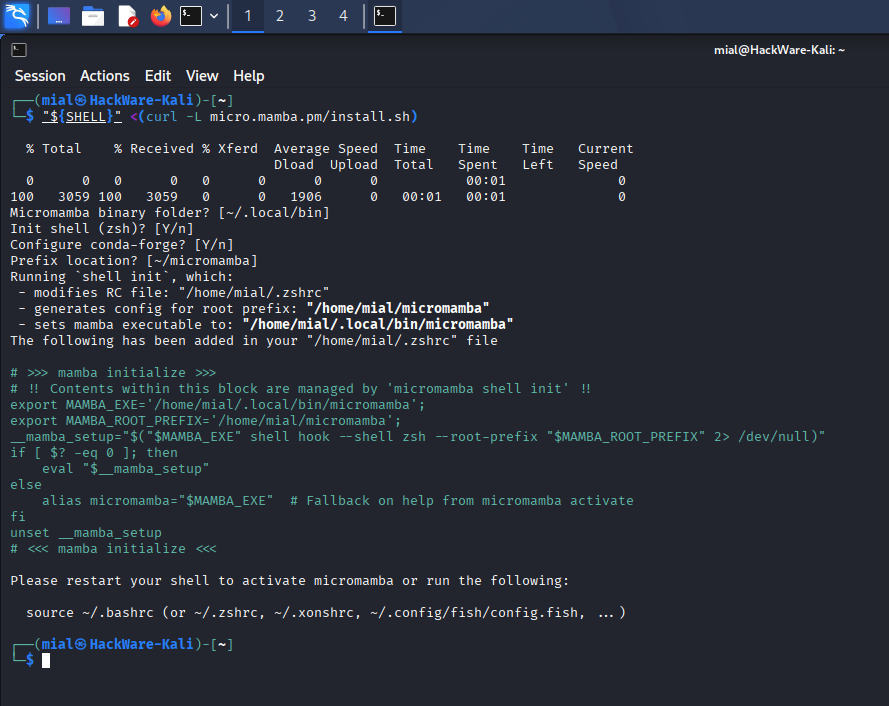
Then close and reopen your terminal so the changes take effect.
After installation, Micromamba can be updated with:
micromamba self-update
4.2 Installing Micromamba on Arch Linux (Manjaro, BlackArch)
Install it using pikaur:
pikaur -S micromamba-bin
See also: Automatic installation and update of AUR packages
On Arch Linux, this installs Micromamba but does not automatically modify your shell configuration to initialize it. Before using Micromamba (creating or activating environments), run:
eval "$(micromamba shell hook --shell bash)"
This remains active only until the terminal is closed.
To make the change permanent, run:
micromamba shell init --shell bash --root-prefix=~/.local/share/mamba
5. Getting started with Micromamba: creating and using an environment with a specific Python version
Create an environment with Python 3.12 (only needs to be done once):
micromamba create -n myenv python=3.12 -y
Create an environment with the latest Python version:
micromamba create -n test python -y
Creating an environment and installing packages at the same time is the standard approach. It saves time and avoids unnecessary dependency rebuilds.
For example:
micromamba create -n myenv python=3.12 numpy pandas pytorch -c conda-forge -y
For machine learning and CUDA workloads, multiple channels are often required:
micromamba create -n ml-env python=3.11 pytorch torchvision pytorch-cuda=12.1 -c pytorch -c nvidia -c conda-forge -y
Activate an environment:
micromamba activate myenv
This remains active until you close the terminal or deactivate the environment.
Verify the environment:
python --version
which python
To activate an environment located outside the Micromamba prefix (~/.local/share/mamba), specify its full path:
micromamba activate /home/mial/.conda/envs/qwen3-asr
Deactivate the environment:
micromamba deactivate
List environments:
micromamba env list
Remove an environment:
micromamba remove -n myenv --all
6. Managing packages in a Micromamba environment
Basic package search:
micromamba search cuda
Search within a specific channel:
micromamba search -c nvidia cuda
Search by version:
micromamba search "python=3.12"
Search by partial package name:
micromamba search "*cuda*"
Install packages into the currently activated environment:
micromamba install numpy scipy
Installing packages into an existing environment without activating it (using -n) is often more convenient in scripts:
micromamba install -n myenv numpy scipy
Update a specific package:
micromamba update numpy
Update the entire environment:
micromamba update --all
Remove a package:
micromamba remove numpy
Remove a package from a specific environment:
micromamba remove -n myenv numpy
List installed packages:
micromamba list
List packages installed in a specific environment:
micromamba list -n myenv
7. Using pip inside Micromamba
Within a Conda environment (Miniconda or Micromamba), you can use pip exactly as you would in a standard Python virtual environment.
pip resolves dependencies, but it works locally and does not rebuild the entire environment. Micromamba, on the other hand, solves dependencies globally. In more complex situations – especially when installing packages that require compilation – Micromamba may provide better dependency management and environment consistency.
Therefore, if a package installation fails with pip, try installing it through Micromamba instead.
pip is usually already installed, but you can ensure it is available with:
micromamba install pip
Example of using pip in a Conda environment (Miniconda / Micromamba):
pip install fastapi uvicorn
8. Exporting and recreating environments
Export a Conda environment (similar to requirements.txt, but generally better):
micromamba env export -n myenv > environment.yml
Create an environment from a YAML file:
micromamba env create -f environment.yml
What happens:
- The YAML file is read.
- A new environment is created.
- All dependencies are installed.
To see where the environment was created:
micromamba env list
You should see myenv in the list.
Activate it from any directory:
micromamba activate myenv
Important notes
1. Environment name comes from the file
name: myenv
Override the name:
micromamba env create -n NEW_NAME -f environment.yml
2. If the environment already exists
env create does not update existing environments and will fail.
To update an existing environment:
micromamba env update -n myenv -f environment.yml
3. Recreating from scratch is often better
The most reliable approach:
micromamba remove -n myenv --all
micromamba env create -f environment.yml
4. pip packages in environment.yml
If the file contains a pip: section, those packages are installed automatically:
- pip:
    - some-package
5. Channels
Channels are taken from:
channels:
  - conda-forge
If no channels are specified, Micromamba uses those configured in .condarc.
Clone an environment:
micromamba create -n myenv-copy --clone myenv
This is extremely useful for experiments.
9. Conda channels (Miniconda / Micromamba)
We have already mentioned channels several times. Let's look at them in more detail.
A channel is simply a repository of Conda binary packages (similar to PyPI, but with dependencies already built).
Examples:
- conda-forge – the primary community channel
- defaults – the official Anaconda channel
- pytorch – PyTorch packages
- nvidia – CUDA and GPU-related packages
Commonly used channels
1. conda-forge (the de facto standard)
- Largest package repository
- Up-to-date package versions
- Excellent compatibility
- Used by default in Micromamba
In practice, using only conda-forge is often sufficient.
2. defaults
- Maintained by Anaconda
- More conservative package versions
- Sometimes incompatible with conda-forge
Generally:
- Use either defaults
- Or conda-forge
- Avoid mixing them unless necessary
3. Specialized channels
3.1 pytorch
-c pytorch
Provides:
- PyTorch
- torchvision
- torchaudio
3.2 nvidia
-c nvidia
Provides:
- CUDA
- cuDNN
- GPU acceleration
Add a channel:
micromamba config append channels conda-forge
View configured channels:
micromamba config get channels
Channel priority affects package compatibility and is a common source of difficult dependency conflicts.
10. Running commands without activating an environment
This is useful in scripts, cron jobs, and similar scenarios:
micromamba run -n myenv python script.py
Or:
micromamba run -n myenv bash
11. Cleaning the cache
If you encounter strange conflicts or simply want to free disk space:
micromamba clean --all
12. Practical Micromamba tips
1. Explicitly specify a channel for machine learning packages
Otherwise you may end up with unexpected builds:
-c conda-forge
2. Avoid mixing channels unnecessarily
Bad: defaults + random + conda-forge
Better: conda-forge (main) + pytorch / nvidia when needed
3. Do not overuse pip
If a package is available through Conda, installing it with Micromamba is usually preferable.
Minimal production-like workflow
# create environment
micromamba create -n app python=3.12 -c conda-forge -y

# install dependencies
micromamba install -n app fastapi uvicorn numpy

# install remaining pip-only packages
micromamba run -n app pip install some-package

# run the application
micromamba run -n app python main.py
13. Micromamba errors and troubleshooting
13.1 OSError: [Errno 28] No space left on device
When installing a package:
pip install -U qwen-asr qwen-asr[vllm]
You may encounter:
OSError: [Errno 28] No space left on device
Even though both disk space and inodes appear to be available.
See also: What files can be deleted when there is not enough disk space in Linux
The underlying issue is that many Linux distributions place temporary files in a tmpfs filesystem located in RAM. This temporary storage may fill up even when plenty of disk space remains available.
Solution: use a directory on disk for temporary files:
mkdir -p ~/pip-tmp
TMPDIR=~/pip-tmp pip install -U qwen-asr qwen-asr[vllm]
You can also disable the pip cache:
TMPDIR=~/pip-tmp pip install --no-cache-dir -U qwen-asr qwen-asr[vllm]
13.2 error: [Errno 18] Invalid cross-device link
When installing a package such as:
pip install -U flash-attn --no-build-isolation
You may see:
Raw wheel path /home/mial/.cache/pip/wheels/3d/59/46/f282c12c73dd4bb3c2e3fe199f1a0d0f8cec06df0cccfeee27/tmpj98ktnfb/.tmp-fya5_alf/flash_attn-2.8.3-cp312-cp312-linux_x86_64.whl error: [Errno 18] Invalid cross-device link: 'flash_attn-2.8.3+cu12torch2.9cxx11abiTRUE-cp312-cp312-linux_x86_64.whl' -> '/home/mial/.cache/pip/wheels/3d/59/46/f282c12c73dd4bb3c2e3fe199f1a0d0f8cec06df0cccfeee27/tmpj98ktnfb/.tmp-fya5_alf/flash_attn-2.8.3-cp312-cp312-linux_x86_64.whl' [end of output]
The key part is:
error: [Errno 18] Invalid cross-device link
This is a filesystem-level POSIX error. It occurs when a rename() operation (or hard link creation) attempts to move a file between different filesystems or mount points.
pip downloads or builds a wheel in a temporary directory (usually under /tmp) and then moves it to the cache (~/.cache/pip) or the target environment. If these locations are on different filesystems, the operation may fail.
Possible solutions:
Option 1: Use a disk-based temporary directory
mkdir -p ~/pip-tmp
TMPDIR=~/pip-tmp pip install -U flash-attn --no-build-isolation
Option 2: Disable pip caching
pip install -U flash-attn --no-cache-dir --no-build-isolation
14. How to uninstall Micromamba on Linux
14.1 Uninstalling Micromamba on Debian (Kali Linux, Linux Mint, Ubuntu)
Micromamba consists of a single executable along with several directories and configuration files.
To locate all relevant files, run:
micromamba info
This displays important information such as:
- envs directories – where environments are stored
- package cache – where downloaded packages are cached
- user config files – location of .mambarc
- populated config files – location of .condarc
- root prefix (called the base environment in newer versions) – the root directory used by Micromamba
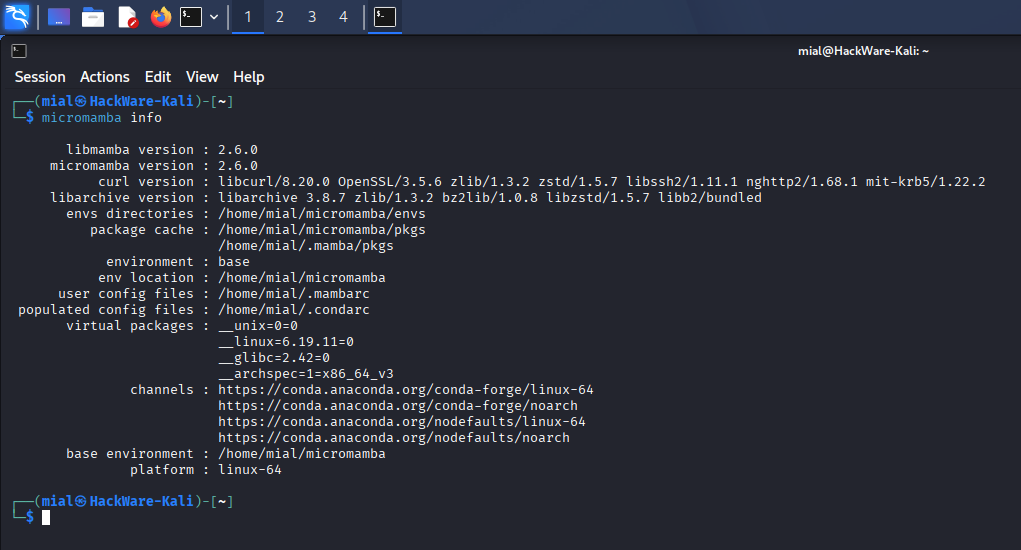
Use these paths to adapt the following commands to your installation.
1. Remove shell initialization
If you initialized your shell with:
micromamba shell init
remove the initialization block:
micromamba shell deinit -s bash    # bash
micromamba shell deinit -s zsh     # zsh
micromamba shell deinit -s fish    # fish
micromamba shell deinit -s xonsh   # xonsh
micromamba shell deinit -s csh     # csh/tcsh
micromamba shell deinit -s nu      # nushell
This removes the Mamba initialization code from shell configuration files such as .bashrc, .zshrc, and config.fish.
2. Remove the executable
For installations performed using the official installer:
rm ~/.local/bin/micromamba
3. Remove environments, packages, and caches
If you used the default paths:
rm -rf ~/micromamba
For custom locations:
rm -rf /path/to/your/custom/root/prefix
Check the cache location reported by micromamba info. It may need to be removed separately.
Warning: This permanently removes all environments, installed packages, and cached data. Back up any important environments before proceeding.
4. Remove configuration files
According to micromamba info:
- user config files indicates the location of .mambarc
- populated config files indicates the location of .condarc
Default locations:
rm ~/.mambarc
rm ~/.condarc
After completing these steps, Micromamba will be fully removed from your system.
14.2 Uninstalling Micromamba on Arch Linux (Manjaro, BlackArch)
Remove the package with pikaur:
pikaur -R micromamba-bin
You can then manually remove any remaining environments, caches, and configuration files as described above.
Related articles:
- How to create virtual environments with any Python version (Miniconda user guide) (100%)
- How to run small Python code in Bash (51.7%)
- ONVIF client with command line interface (51.7%)
- How to convert a string to uppercase in Bash (51.7%)
- How to convert a string to lowercase in Bash (51.7%)
- How to download a file from a URL and save it on my server (how to avoid running out of RAM when downloading large files) (RANDOM - 50%)
