What does $_ and $PSItem mean in PowerShell
August 6, 2025
Table of Contents
1. What is $_ and $PSItem in PowerShell
2. How to use $_ and $PSItem in ForEach-Object and Where-Object cmdlets
3. Using $_ and $PSItem in .ForEach() and .Where() methods
4. Using $_ and $PSItem in Format-Table
5. Using $_ and $PSItem in hashtables to format output
6. The -replace operator script block
7. Other uses of $_ and $PSItem
8. The $_ variable does not work with any cmdlet
1. What is $_ and $PSItem in PowerShell
$PSItem is a variable whose value is automatically assigned as the current object in the pipeline. As for $_, it is its short alias – although it should be noted that $_ is usually used, and some new users do not even know about $PSItem.
PowerShell includes the $PSItem variable and its $_ alias as automatic variables in script blocks that iterate over the current object, such as in the pipeline. In this case, you can access the properties of each object being iterated using the syntax
$_.PROPERTY
In all the examples shown below, $PSItem and $_ are completely interchangeable and you can use either one.
So, the official definition of $PSItem (and $_ ) is an automatic variable that contains the current object in the pipeline object. If you do not yet understand what “the current object in the pipeline object” is, then let's look at some specific examples.
2. How to use $_ and $PSItem in ForEach-Object and Where-Object cmdlets
The following cmdlet displays folders and files in the current directory:
Get-ChildItem
The command can be written differently – in the new version, all the values that Get-ChildItem receives are piped to the ForEach-Object cmdlet, which performs the specified action for each received object – namely, it just outputs it:
Get-ChildItem | ForEach-Object {Write-Output $_}
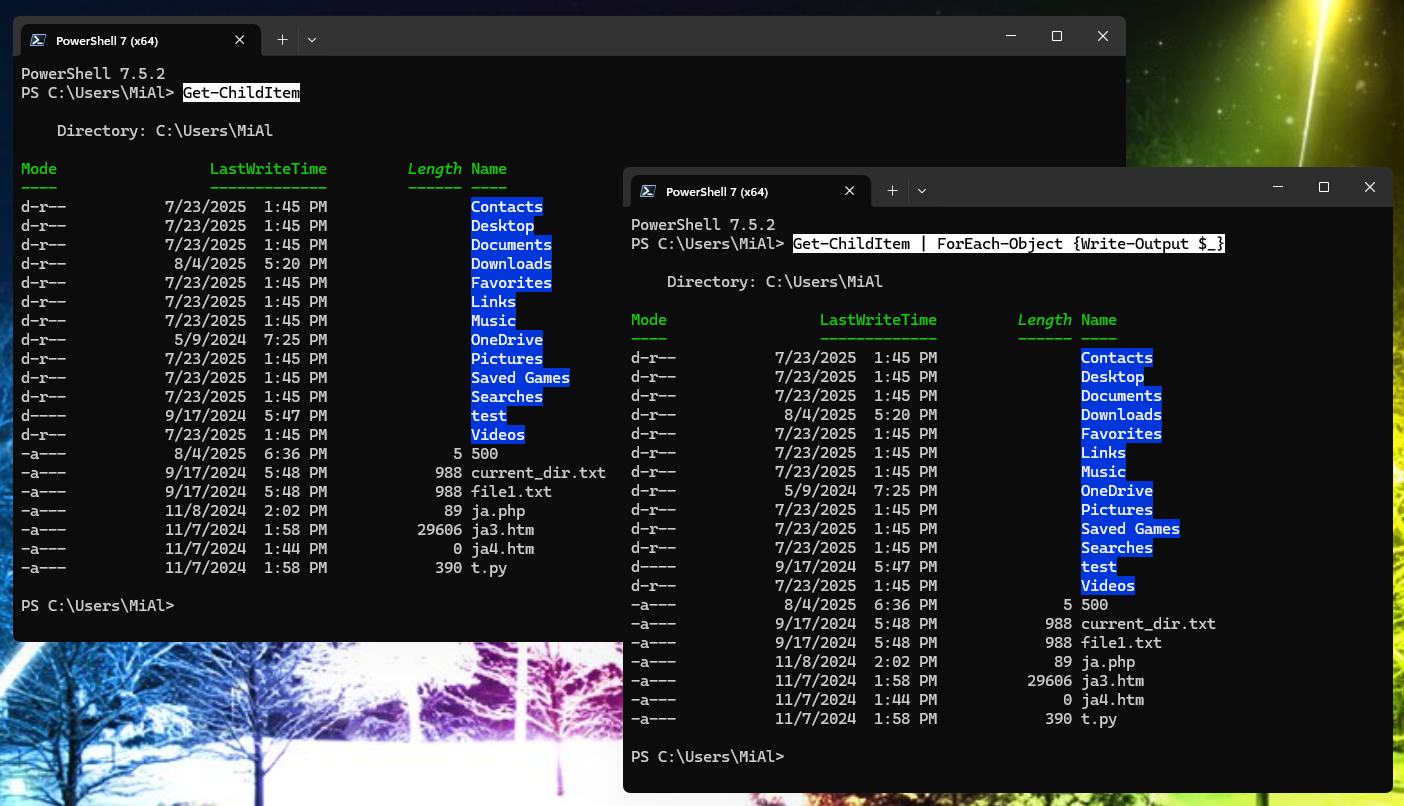
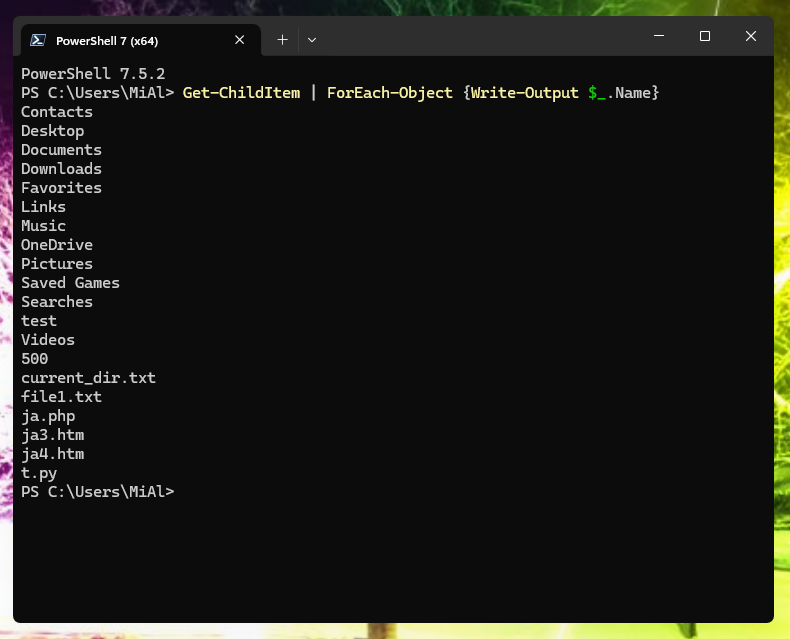
That is, the previous two commands will give identical output. This doesn't make much sense at the moment, but remember that we can access the properties of each processed object. For example, instead of displaying full information, we can limit output to displaying only the names of files and folders:
Get-ChildItem | ForEach-Object {Write-Output $_.Name}
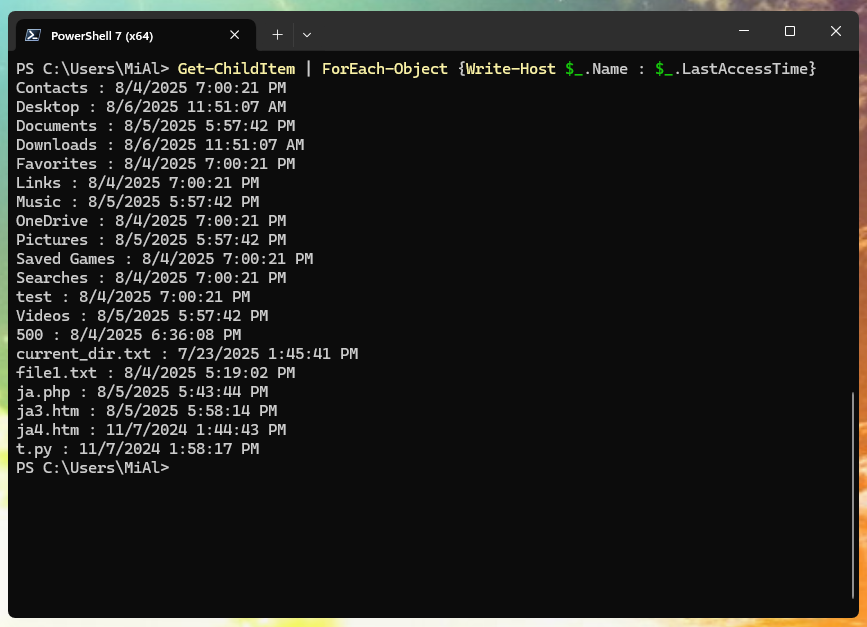
By accessing the properties of the $_ object, you can output properties that are not shown by default:
Get-ChildItem | ForEach-Object {Write-Host $_.Name : $_.LastAccessTime}
You can do something like this:
Get-ChildItem | ForEach-Object {Write-Host File $_.Name was last opened at $_.LastAccessTime}
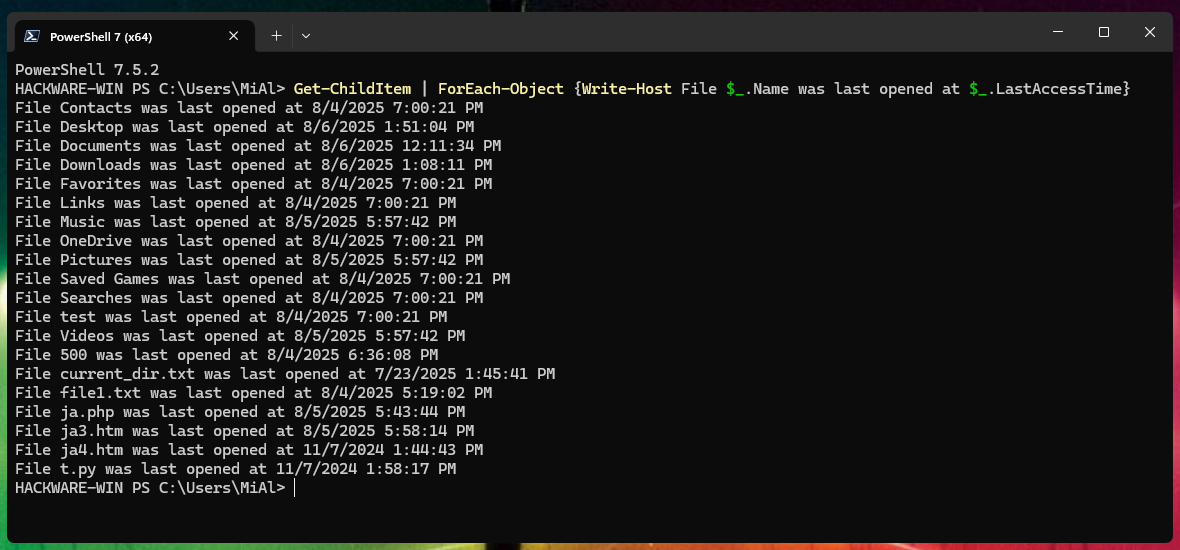
In fact, we should pay attention not to the formatting capabilities, but to how we use $_.
For $_ objects, you can not only get property values, but also perform certain actions on them. The following example divides all elements of an array:
30000, 56798, 12432 | ForEach-Object({$_/1024})
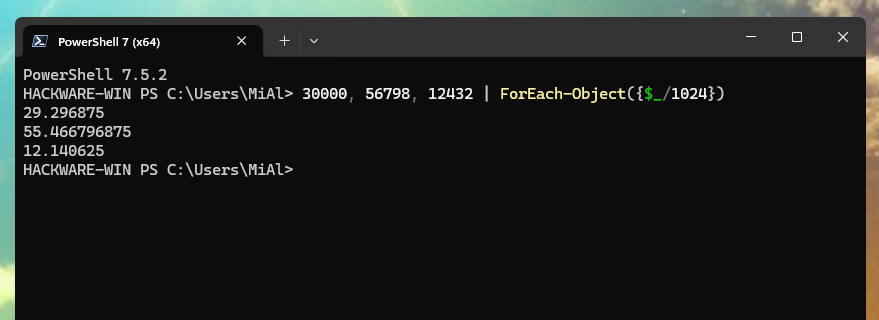
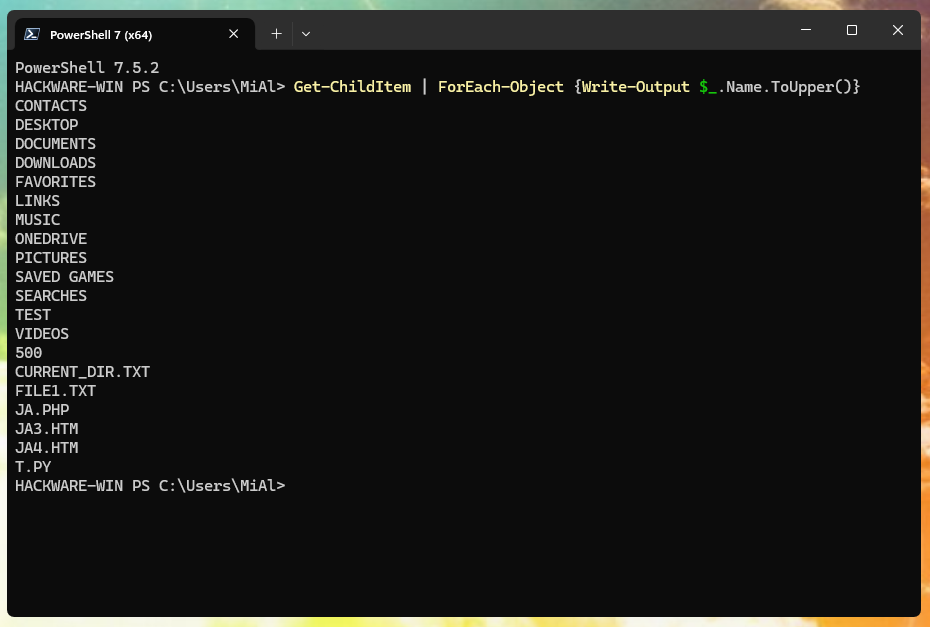
In the previous example, the action is performed on the $_ object itself. In the following example, the .ToUpper() method is executed on the .Name property of the $_ object – this will result in the output of file and folder names written in uppercase letters:
Get-ChildItem | ForEach-Object {Write-Output $_.Name.ToUpper()}
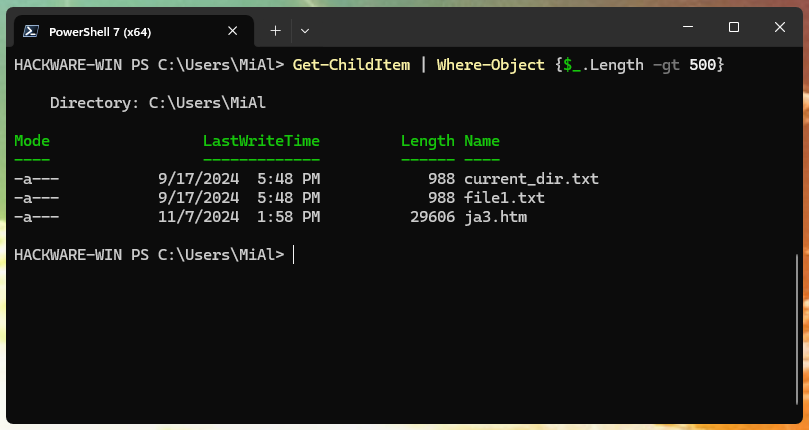
In addition to getting properties and performing various actions on them, you can filter by property values.
Get-ChildItem | Where-Object {$_.Length -gt 500}
Note: you may have seen examples of using Where-Object without the $_ variable. The previous example can be written using the following syntax (both of the following commands are identical to the previous command and, accordingly, to each other):
Get-ChildItem | Where-Object -Property Length -gt 500
Get-ChildItem | Where-Object Length -gt 500
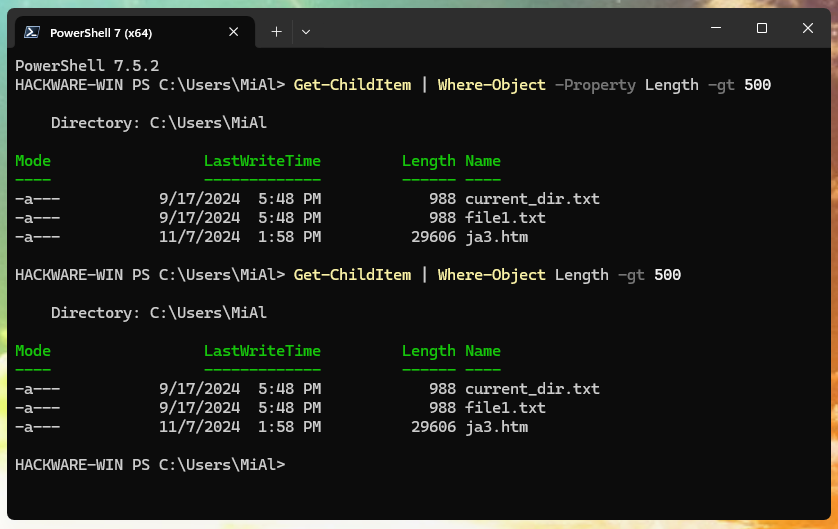
As you can see, using the $_ variable can be optional.
Let's look at some more examples of using $PSItem and $_.
With $_, you can search using different comparison parameters for the properties of the current object:
Get-ChildItem | Where-Object {$PSItem.Name -Match 'ja[0-9]+'}
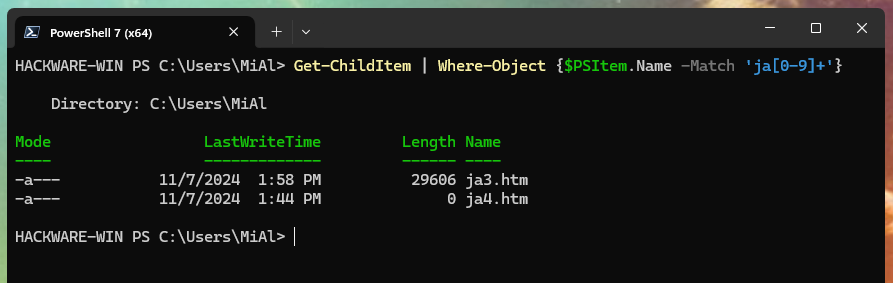
You can access the $_ and $PSItem variables multiple times in one command:
Get-ChildItem | Where-Object {$_.Extension -eq '.py' -or $_.Extension -eq '.txt'}
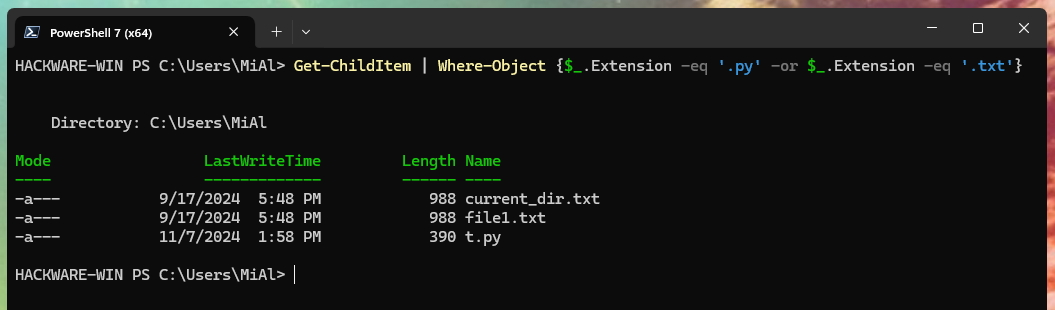
You can access different properties of an object in one command:
Get-ChildItem | Where-Object {$PSItem.Extension -like '.py' -and $PSItem.Name -like 'job'}
The object corresponding to the specified properties can be passed further down the pipeline:
Get-Process | Where-Object {$_.Name -like "notepad"} | Stop-Process
Note: the following command is not a complete analogue, since if the “notepad” process is not running, an error will be displayed:
Stop-Process -Name "notepad"
This command will display the contents of the file “file.txt” only if it exists (otherwise nothing will be displayed):
Get-ChildItem | Where-Object {$_.Name -like "file.txt"} | Get-Content
A similar command will raise an error if the file.txt does not exist:
Get-Content file.txt
In fact, objects and their properties can be not only files or strings. In a similar way, you can process objects that are processes, computers or users in Arctive Directory. An example of filtering processes by their status:
Get-Service | Where-Object { $_.Status -eq "Stopped" }
3. Using $_ and $PSItem in .ForEach() and .Where() methods
The ForEach-Object and Where-Object cmdlets have analogs in the form of the .ForEach() and .Where() methods. In these methods you can also use the $_ and $PSItem variables:
(30000, 56798, 12432).ForEach({$_/1024})
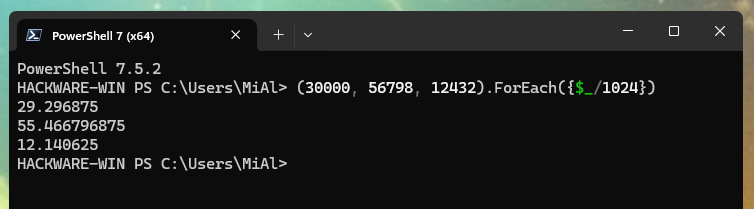
Another of the above commands rewritten using a method instead of a cmdlet:
(Get-ChildItem).Where({$_.Extension -eq '.py' -or $_.Extension -eq '.txt'})
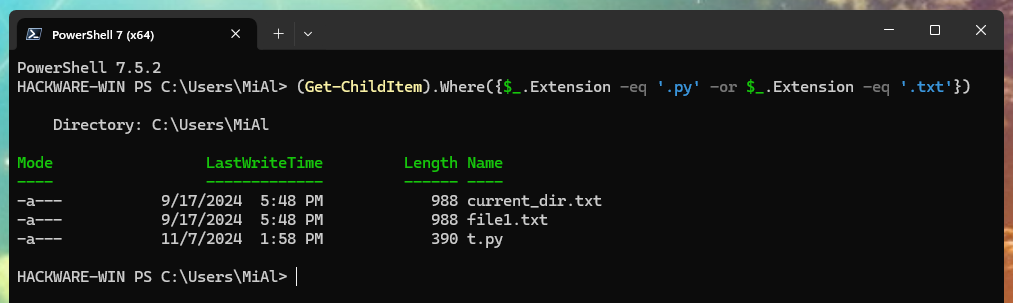
As with the pipeline, which allows you to sequentially apply cmdlets to the same transmitted data, methods also allow you to build chains of processed data:
@('a', 'b', 'c').ForEach({ $PSItem.ToUpper() }).Where({ $PSItem -ceq 'B' })

4. Using $_ and $PSItem in Format-Table
The following example shows how you can format the output in detail by specifying the desired properties of the object using the $_ and $PSItem variables. The $_ variable is used to access the property of the object that is ultimately used in the calculations (to determine the running time of the process):
Get-Process notepad | Format-Table ProcessName, @{Label="TotalRunningTime"; Expression={(Get-Date) - $_.StartTime}}

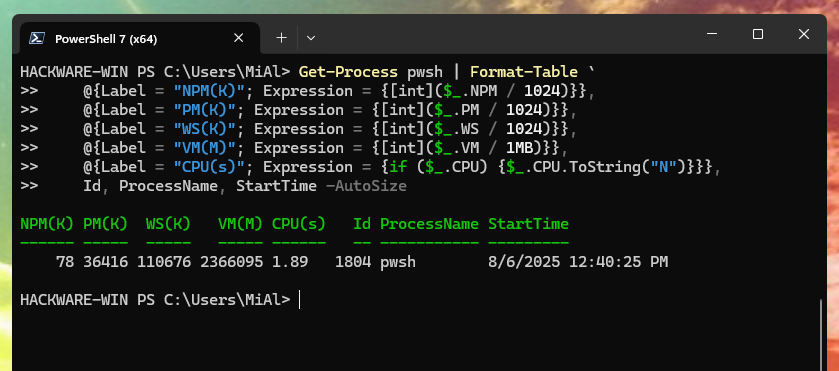
As in the examples above, various operations can be performed on the properties of the current object, and appropriate methods can be used:
Get-Process pwsh | Format-Table `
    @{Label = "NPM(K)"; Expression = {[int]($_.NPM / 1024)}},
    @{Label = "PM(K)"; Expression = {[int]($_.PM / 1024)}},
    @{Label = "WS(K)"; Expression = {[int]($_.WS / 1024)}},
    @{Label = "VM(M)"; Expression = {[int]($_.VM / 1MB)}},
    @{Label = "CPU(s)"; Expression = {if ($_.CPU) {$_.CPU.ToString("N")}}},
    Id, ProcessName, StartTime -AutoSize
5. Using $_ and $PSItem in hashtables to format output
There are several cmdlets that support using hashtables to create custom or calculated properties. This is commonly seen in commands with Select-Object and Format-Table.
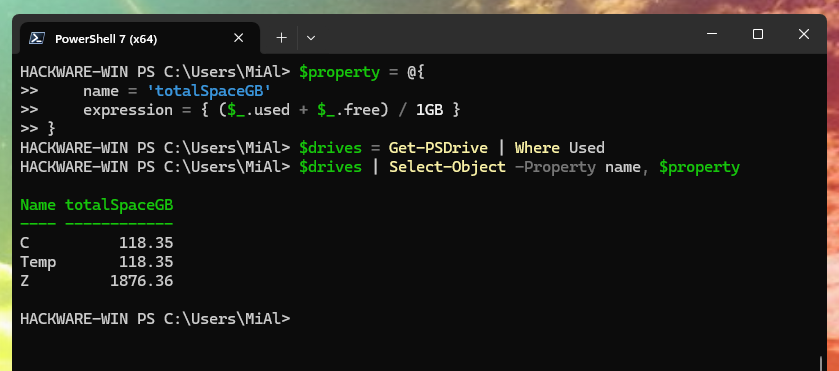
In fact, we already saw the use of $_ in hashtables in the previous section. In this section, I would like to point out that this feature is supported not only by Format-Table, but also by some other cmdlets. Also note that a hash table with $_ can be either specified as a cmdlet argument or saved in a variable and then used as a cmdlet argument:
$property = @{
    name = 'totalSpaceGB'
    expression = { ($_.used + $_.free) / 1GB }
}
$drives = Get-PSDrive | Where Used
$drives | Select-Object -Property name, $property
See also:
- Hashtables in PowerShell (strings that start with @) (complete guide)
- How to remove the header from the output table in PowerShell and leave only the data
6. The -replace operator script block
Starting with PowerShell 6, you can use $PSItem when calling the replace operator and defining the replace script block. In this case, the value of $PSItem will be the value of the current match.
$datePattern = '\d{4}-\d{2}-\d{2}'
'Today is 1999-12-31' -replace $datePattern, { [datetime]$PSItem.Value }
In this example, the replace script block replaces the original date string with the default format of the current culture, casting the value to datetime.
7. Other uses of $_ and $PSItem
As follows from the PowerShell 7 documentation, there are other, more exotic uses of $_ and $PSItem:
- with parameters of a delayed binding script block
- in conditional values of a switch statement and its associated script blocks
- in a process block of a function
- in a filter definition
- in a script block of the ValidateScript attribute
8. The $_ variable does not work with any cmdlet
If you are using a command pipeline, this does not mean that you can use $_ in any part of it, for example, the following command will cause an error:
Get-ChildItem | Write-Output $_.Name
To summarize, $_ and $PSItem are typically used in the following cases:
- in the ForEach-Object cmdlet (to perform actions with each object)
- in the Where-Object cmdlet (to search or filter by the properties of each object)
- in the .ForEach() and .Where() methods – for similar purposes to those listed above
- in the Select-Object and Format-Table cmdlets to format the output, including performing various operations with the object's properties (for example, calculations)
Conclusion
So, the $_ and $PSItem variables are aliases for each other and denote the current object that is being passed along the pipeline.
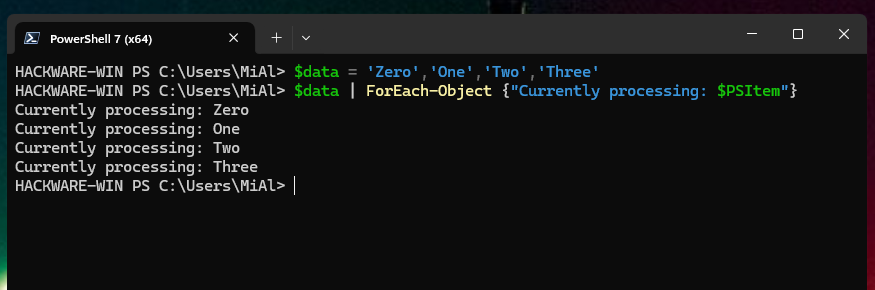
When passing along the pipeline, each object is passed in turn and the $_ value contains the current object:
$data = 'Zero','One','Two','Three'
$data | ForEach-Object {"Currently processing: $PSItem"}
Using $_ and $PSItem you can access the properties and methods of an object. You can filter by the properties of an object and display only the data you are interested in.
Related articles:
- Hashtables in PowerShell (strings that start with @) (complete guide) (88%)
- How to remove the header from the output table in PowerShell and leave only the data (56.9%)
- How to find large files in PowerShell (using Get-Childitem) (56.9%)
- PowerShell: how to find only folders with Get-ChildItem (56.9%)
- How to determine an object's type in PowerShell (55.2%)
- How to read file contents in PowerShell. How to save file contents to a variable (RANDOM - 50%)
