
SSD is very slow in Linux. How to check and enable TRIM in Linux (SOLVED)
August 11, 2024
If your SSD initially showed high performance, but over time it has become noticeably slower to read and write data, or periodically the read and write speed of the SSD drops sharply, then this article can help you.
For SSD drives, it is necessary to perform the Trim operation and it is not enabled by default on some Linux distributions
The principles of operation and storage of information of solid-state drives (SSD) are very different from hard drives (HDD).
In very simplified terms, when deleting a file, bytes are not actually erased, instead, a note is made in the file system journal that certain areas of the disk that were previously occupied by this file are now free and can be overwritten if necessary. This is true for both SSD and HDD. For each of the disk drives, this has different consequences.
For HDD, this means that it is often possible to recover a file that is considered deleted. For traditional hard drives, writing to parts of the disk where a file marked as deleted is located is no different from writing to an unoccupied sector.
SSDs store data in flash memory cells grouped (in MLC) into “pages” (usually 4 KB each), which in turn are grouped into blocks (usually 128 pages or 512 KB in total). NAND flash cells can only be directly written to when they are clean. When they store data, the contents of the cells must be erased before new data can be written to them. In SSDs, a write operation can only be performed on pages, but due to hardware limitations, the erase command is always performed on the entire block. As a result, writing to an SSD is very fast as long as there are clean pages, but slows down significantly if previously written pages need to be erased. Since the cells in a page must be cleared before they can be written to again, but only the entire block can be cleared, the rewriting process initiates a read-clear-modify-write cycle: the contents of the entire block must be stored in the cache before they can be evicted from the drive, the data to be rewritten is modified in the cache, and only then is the entire block (with the updated page) written to the drive. This phenomenon is known as Write amplification (WA).
Basically, you need to tell the SSD in advance which cells are no longer in use so that the drive can clear them and prepare them for the next write. If the drive is not ready for this, the drive will clear the unused cells before writing anything, which will delay the write.
This is what Trim is for – it tells the drive which cells are actually unused so that the drive can clear them in advance and prepare for the next write to it.
A trim command (known as TRIM in the ATA command set, and UNMAP in the SCSI command set) allows an operating system to inform a solid-state drive (SSD) which blocks of data are no longer considered to be “in use” and therefore can be erased internally.
See also:
How to enable TRIM in Linux
By default, TRIM is already enabled in most Linux distributions.
But, firstly, in some distributions you need to enable this service yourself (for example, in Arch Linux, which is installed and configured by the user from scratch).
Secondly, you may want to change the settings for the frequency of the TRIM command. By default, the TRIM operation is performed automatically once a week. If your SSD is almost completely occupied (has little free space) and you actively write and delete files to it, then it may turn out that it is desirable to run the TRIM command more often for this disk.
How to enable automatic TRIM in Linux
First, check the status of fstrim.timer, to do this, run the following command:
systemctl status fstrim.timer
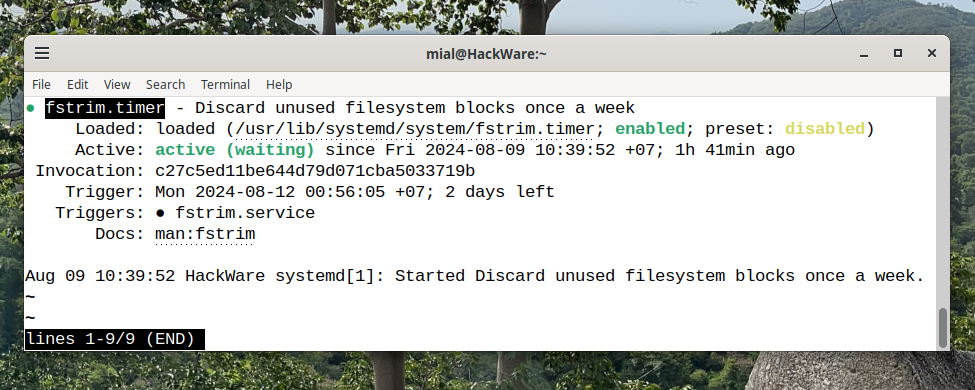
If you see that the status
Active: active (waiting)
This means that the fstrim service has already been added to automatic startup.
Full output:
● fstrim.timer - Discard unused filesystem blocks once a week
     Loaded: loaded (/usr/lib/systemd/system/fstrim.timer; enabled; preset: disabled)
     Active: active (waiting) since Fri 2024-08-09 10:39:52 +07; 1h 41min ago
 Invocation: c27c5ed11be644d79d071cba5033719b
    Trigger: Mon 2024-08-12 00:56:05 +07; 2 days left
   Triggers: ● fstrim.service
       Docs: man:fstrim

Aug 09 10:39:52 HackWare systemd[1]: Started Discard unused filesystem blocks once a week.
In this output, you can see that the trigger that activates TRIM will be triggered on 2024-08-12 and there are 2 days left until it is triggered.
If you see the status of fstrim.timer as inactive:
Active: inactive (dead)

Then you can enable automatic TRIM in Linux with the following commands:
sudo systemctl enable fstrim.timer
sudo systemctl start fstrim.timer
If you want to edit the TRIM frequency in Linux, use the following command:
sudo systemctl edit fstrim.timer
How to manually execute TRIM
You can manually execute TRIM at any time for a specific disk or for all mounted file systems (only mounted file systems are supported).
sudo fstrim -v MOUNTPOINT
Here, instead of MOUNTPOINT, you need to specify the mount point, for example, to execute TRIM for a disk that is the root partition of a file system:
sudo fstrim -v /
Example output:
/: 628 GiB (674344615936 bytes) trimmed

That is, thanks to the TRIM operation, 628 GiB were prepared for subsequent fast writing (which is 70% of the entire disk – no wonder the write speed dropped).
And the following command will perform TRIM on the disk mounted at /mnt/disk_d/:
sudo fstrim -v /mnt/disk_d/
Sample output:
/mnt/disk_d/: 425.1 GiB (456420438016 bytes) trimmed

The time it takes for TRIM to complete depends on the amount of data being processed. The operation can take several minutes if there are hundreds of gigabytes to TRIM. Running TRIM again will complete much faster if there is no new data to TRIM.

Instead of specifying a mount point, you can choose one of the following options.
The -a (--all) option means to perform TRIM on all mounted file systems.
Example:
sudo fstrim -v -a
Option -A (--fstab) means to perform TRIM for all mounted file systems that are mentioned in /etc/fstab.
Example:
sudo fstrim -v -A
Disks that do not support TRIM are automatically skipped.
TRIM is enabled, but the SSD is still very slow
If the TRIM operation does not solve your problem, then try the following options:
1. Update the disk firmware.
2. Check the health of the disk (using manufacturer utilities or Linux utilities).
3. Make sure the disk is not overheating.
Related articles:
- In-RAM filesystem to speed up file handling and reduce disk load (tmpfs) (99.1%)
- How to find out the number of starts and the total working time of a disk in Linux (93.8%)
- How to know when the ext4/ext3/ext2 filesystem was created and when it was last mounted (93.8%)
- How to find out which process is causing high disk usage in Linux (71.3%)
- How to determine why Linux boots into Emergency mode (66.8%)
- How to migrate from X11 to Wayland? (RANDOM - 50%)
