How to transfer a database between DBMS servers without creating a database dump file (MySQL and MariaDB)
April 7, 2025
Contents
- Is it possible to transfer a database from one MySQL / MariaDB server to another without creating an intermediate file
- How to transfer a database from one server to another
- How to transfer a database from one MySQL/MariaDB instance to another when both MySQL/MariaDB instances are running on the same machine
- How to transfer a database from one MySQL/MariaDB instance to another when the DBMSs are running on different machines
- How to transfer a database from one MySQL/MariaDB instance to another when the DBMSs are running on different machines via SSH
- How to transfer a database from one MySQL/MariaDB instance to another via SSH tunnel
1. Is it possible to transfer a database from one MySQL / MariaDB server to another without creating an intermediate file
Yes, it is possible to transfer a file directly from one MySQL / MariaDB server to another server without first exporting the database to a file. This article is devoted to possible ways of such a transfer. In this case, different options are considered: transferring databases from one DBMS to another when they are running on the same server, as well as when they are running on different machines.
But first, let's refresh the information about the common mechanism of exporting and importing databases via an intermediate file.
2. How to transfer a database from one server to another
A typical way to transfer a database from one MySQL and MariaDB server to another is to export the database to a file on the first machine and import the created file on the second machine.
That is, on the server from which you need to transfer the database, a command like this is executed:
mariadb-dump -u USER -h HOST -P PORT -p DB_NAME > DB.sql
Or a command like the following – if you need to transfer individual tables:
mariadb-dump -u USER -h HOST -P PORT -p DB_NAME TABLE1 TABLE2 TABLE3 > DB.sql
Note: from here on the names of the executable files mariadb-dump and mysqldump are analogs and which name to use depends on whether you have MySQL or MariaDB installed. The same applies to mariadb with mysql. Thus, choose one of the names that suits you. The commands in this article use different names of executable files, since both MySQL and MariaDB are installed on the test DBMS servers.
In these commands:
- mariadb-dump is an executable file. If you get a message that the command is not found, use “mysqldump” instead of this name
- -u USER is a DBMS username
- -p option specifies that a password should be requested for USER. This option can be omitted if the login is performed without a password
- -h HOST option specifies the host name. This option can be omitted if the host name is “localhost”
- -P PORT is a MySQL and MariaDB server port number. This option can be omitted if the default port is used (this is 3306)
- DB_NAME is a database that is exported to file
- DB.sql is a file name where the exported database is saved
- TABLE1 TABLE2 TABLE3 — optionally, a list of tables can be specified after the database name — in this case, only individual tables will be exported. Note that one or more tables can be specified. If there are several tables, their names are separated from each other by a space
Command example:
mariadb-dump -u root TestDB > DB.sql
Note that the -h HOST, -P PORT and -p options are omitted in this command, since the host is “localhost”, the default port is used and a user connection is configured without a password.
Then the resulting DB.sql file is uploaded to another server and there a command like this is used to import the database:
mysql -u USER -h HOST -P PORT -p DB_NAME < DB.sql
This command uses the options we are already familiar with, except that we note that the DB_NAME name can be different from the name of the database on the first server. When importing individual tables, you do not need to specify them – it is enough to specify only the database name.
So, now let's look at how to transfer databases to another DBMS server without creating an intermediate file with the database.
3. How to transfer a database from one MySQL/MariaDB instance to another when both MySQL/MariaDB instances are running on the same machine
See also: How to run multiple MySQL/MariaDB server instances on one machine
It is extremely easy to transfer databases from one MySQL or MariaDB instance to another DBMS instance when they are both running on the same computer. To do this, for MariaDB, you need to run a command like this:
mariadb-dump -u USER -h HOST -P PORT -p DB_NAME | mariadb -u USER2 -h HOST2 -P PORT2 -p DB_NAME2
For MySQL, you need to run a command like this:
mysqldump -u USER -h HOST -P PORT -p DB_NAME | mysql -u USER2 -h HOST2 -P PORT2 -p DB_NAME2
All the utilities and options in these commands are familiar to us from the previous section, which is located just above. The essence of these commands is that the output of mariadb-dump (or mysqldump), instead of being saved to a file, is passed to the standard input of the mariadb (or mysql) utility, which executes the received SQL queries and imports the database as a result.
Some options can be omitted if the default settings are used. An example of a real command:
mariadb-dump -u root TestDB | mariadb -u root -P 53306 DB_experimental

This command exports a database named TestDB from a MariaDB instance running on the standard port (that's why the port number is not specified). The resulting data is passed to the standard input of the MariaDB instance running on port 53306, and the import occurs into a database named DB_experimental.
Note: in the screenshot you can see a warning:
WARNING: option --ssl-verify-server-cert is disabled, because of an insecure passwordless login.
This message is caused by a passwordless connection. The database transfer itself was successful.
4. How to transfer a database from one MySQL/MariaDB instance to another when the DBMSs are running on different machines
There are several ways to transfer a database to another DBMS server without exporting it to a file.
The first of these methods is to use the commands from the previous section: they allow you to transfer databases from one host to another, but there are some caveats.
To do this, for MariaDB, you need to run a command like this:
mariadb-dump -u USER -h HOST -P PORT -p DB_NAME | mariadb -u USER2 -h HOST2 -P PORT2 -p DB_NAME2
For MySQL, you need to run a command like this:
mysqldump -u USER -h HOST -P PORT -p DB_NAME | mysql -u USER2 -h HOST2 -P PORT2 -p DB_NAME2
This method of transferring a database requires the following conditions to be met:
- The remote MySQL/MariaDB server is configured to accept connections from other computers
- A user has been created and configured that has permissions to connect from the remote computer (by default, all created users do not have this permission)
- SSL/TLS certificates have been configured (or the --skip-ssl option is used)
As you can see, this is generally a possible method, but additional steps are required to make it actually work.
An example of a real command:
mariadb-dump -u root TestDB | mariadb -u root -h 192.168.1.44 --skip-ssl DB_experimental
Note that the remote host must be specified using the -h option.
5. How to transfer a database from one MySQL/MariaDB instance to another when the DBMSs are running on different machines via SSH
The method from the previous section is more theoretical than practical – I had to make an effort to transfer a database between two computers located on a local network, but I still couldn’t transfer the database to a virtual hosting (because I don’t have the rights to create users who have the right to accept connections from a remote computer).
Let’s look at a more realistic example of transferring a database from one MySQL/MariaDB server to another without using intermediate files.
You must have SSH access to the remote server with MySQL/MariaDB. The following command transfers the DB_NAME database to the remote MySQL/MariaDB server:
mysqldump -u USER -h HOST -P PORT -p DB_NAME | gzip | ssh REMOTE_USER@REMOTE_SERVER "gunzip | mysql -h HOST2 -u USER2 -pPASSWORD DB_NAME2"
What's new in this command:
- REMOTE_USER — username for SSH access
- REMOTE_SERVER — IP address or hostname of the remote server
- -pPASSWORD — we are already familiar with the -p option, which means that the DBMS server should interactively ask for a password, in this case we specify the password on the command line, since we will not be able to enter it interactively. Note that there is no space between the -p option and the password – this is important!
The following warning will be displayed:
_mysql: [Warning] Using a password on the command line interface can be insecure.
Using a password on the command line is indeed unsafe – for the reason that it can be saved in the command history. In this case, an attacker cannot intercept the password over the network, since all SSH traffic is well encrypted.
An analogue of the previous command, but without compression of the transferred database:
mysqldump -u USER -h HOST -P PORT -p DB_NAME | ssh REMOTE_USER@REMOTE_SERVER "mysql -h HOST2 -u USER2 -pPASSWORD DB_NAME2"
Note that databases (being text files) are very well compressed and due to this, the amount of data transferred and the transfer speed are significantly reduced. In addition, since SSH encrypts the transmitted traffic, this can slow down the transfer of large amounts of data even more. Therefore, it is recommended to compress databases.
Let's look at a real example. To connect to a remote server (in my case it’s virtual hosting), I use the following command:
ssh host900000@185.26.122.82 -p 1024 -i ~/.ssh/hostland
For testing purposes, I created a MySQL user and database with the following data:
- username: host900000_tester
- password: qwe123
- database name: host900000_experimental
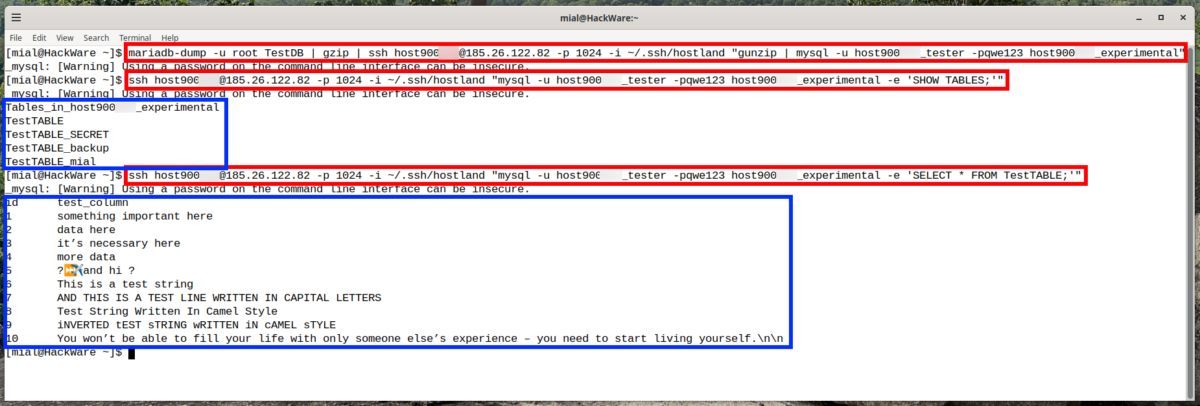
For these conditions, the command that transfers the database from the local server to the remote one without creating an intermediate file is the following:
mariadb-dump -u root TestDB | gzip | ssh host900000@185.26.122.82 -p 1024 -i ~/.ssh/hostland "gunzip | mysql -u host900000_tester -pqwe123 host900000_experimental"
By the way, this way you can execute SQL queries even if MySQL/MariaDB does not accept connections from remote users. For example, the following command will list the tables – you can make sure that the database was successfully transferred:
ssh host900000@185.26.122.82 -p 1024 -i ~/.ssh/hostland "mysql -u host900000_tester -pqwe123 host900000_experimental -e 'SHOW TABLES;'"
And this command will show the contents of one of the tables of the transferred database:
ssh host900000@185.26.122.82 -p 1024 -i ~/.ssh/hostland "mysql -u host900000_tester -pqwe123 host900000_experimental -e 'SELECT * FROM TestTABLE;'"

6. How to transfer a database from one MySQL/MariaDB instance to another via SSH tunnel
If you don't like the idea of having to specify a password in the command line, here's another option for using SSH to transfer a database between MySQL/MariaDB on different machines.
First, run the following command on your local machine:
ssh REMOTE_USER@REMOTE_SERVER -L 3307:localhost:3306 -N
Note: you can add the -f option to this command to put the ssh process into the background, so you only need one terminal window.
This command connects to the remote server and sets up a tunnel (port forwarding). After executing this command, the following happens: the local computer starts listening on port 3307 and all incoming traffic is redirected to port 3306 of the remote computer via the SSH tunnel. That is, the remote computer perceives incoming traffic as local, not remote.
In the command above, you need to substitute your values for REMOTE_USER and REMOTE_SERVER – leave the rest of the valuesunchanged.
An example of a real command for setting up an SSH tunnel:
ssh host900000@185.26.122.82 -p 1024 -i ~/.ssh/hostland -L 3307:localhost:3306 -N
Now let's run a command of the following type to transfer the database to the remote DBMS server:
mariadb-dump -u USER DB_NAME | mariadb -u REMOTE_USER -p -h 127.0.0.1 -P 3307 REMOTE_DB_NAME
In this command you need to specify your values for:
- -u USER – MySQL/MariaDB username on the local computer
- DB_NAME – name of the database you want to transfer to the remote DBMS server
- -u REMOTE_USER – MySQL/MariaDB username on the remote computer
- REMOTE_DB_NAME – name of the database to import on the remote computer
Leave the rest of the command unchanged.
Example of a real command:
mariadb-dump -u root TestDB | mariadb -u host900000_tester -p -h 127.0.0.1 -P 3307 host900000_experimental
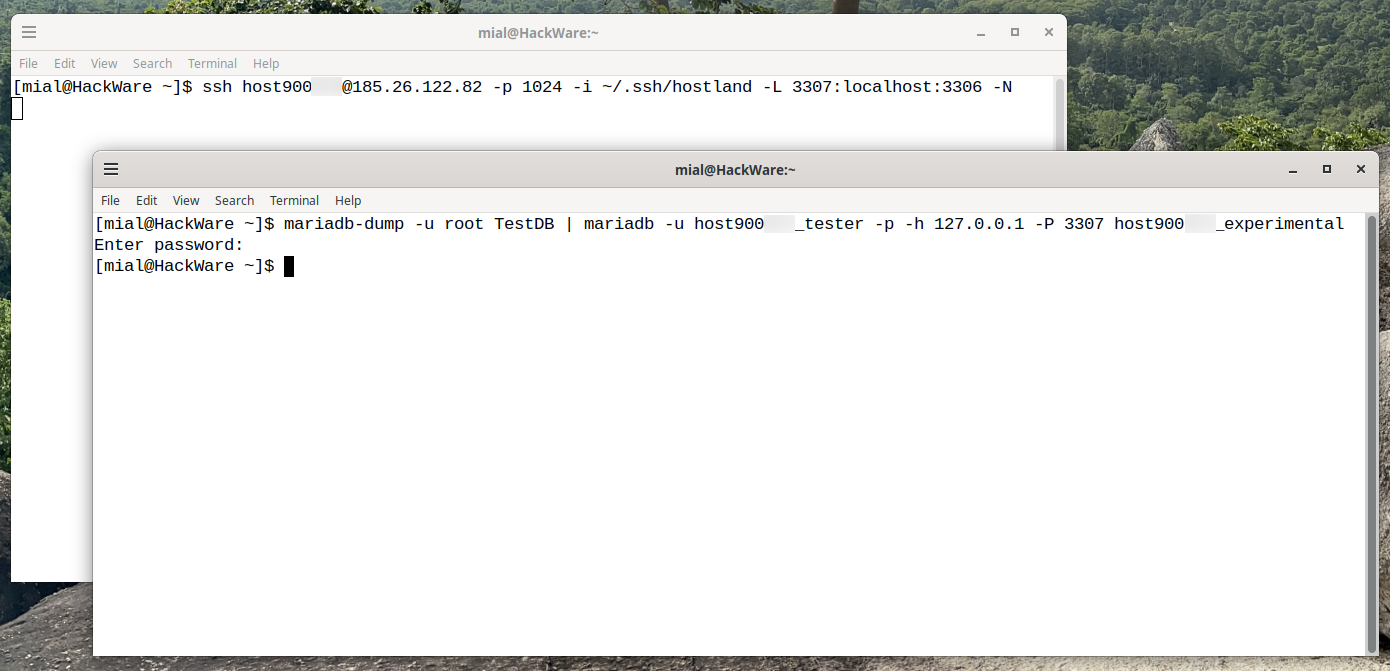
Note that there is now an option to enter the password interactively (though you can still specify it on the command line if you prefer).
Related articles:
- ERROR at line 1: Unknown command '\-'. (SOLVED) (73.2%)
- How to copy a table in phpMyAdmin (66.8%)
- How to copy a table in MySQL/MariaDB (66.8%)
- What do dots mean in MySQL and MariaDB SQL queries. How to refer from a table to a column in another table (55.2%)
- How to run multiple MySQL/MariaDB server instances on one machine (55.2%)
- How to install Kali Linux with full disk encryption (RANDOM - 50%)
